How to Sign a PDF on iPhone
Your iPhone can sign a PDF with the built-in Markup tools, and it remembers your signature. Here’s how, when PDFee is useful instead, and what kind of signature you’re adding.
 PDFee teamUpdated September 26, 2026 · 5 min readTestediPhone 14 Pro · iOS 26.6.2 · PDFee 1.6
On this page
Quick answer
Open the PDF, tap the Markup button, then tap + › Add Signature. Pick a saved signature or draw a new one, drag it into place and tap Done.
- 1Tap Sign PDF
- 2Draw and place
- 3Save signed PDF
Open a PDF from Files or email
- From an emailIn Mail, tap the PDF attachment to open it. The Markup button is at the bottom or top of the preview.
- From FilesTap the PDF to open it. If it came from another app, save it to Files first.
- In PreviewOn iOS 26 and later, the Preview app opens PDFs too and has the same signature tools.
Add a signature with Apple Markup or Preview
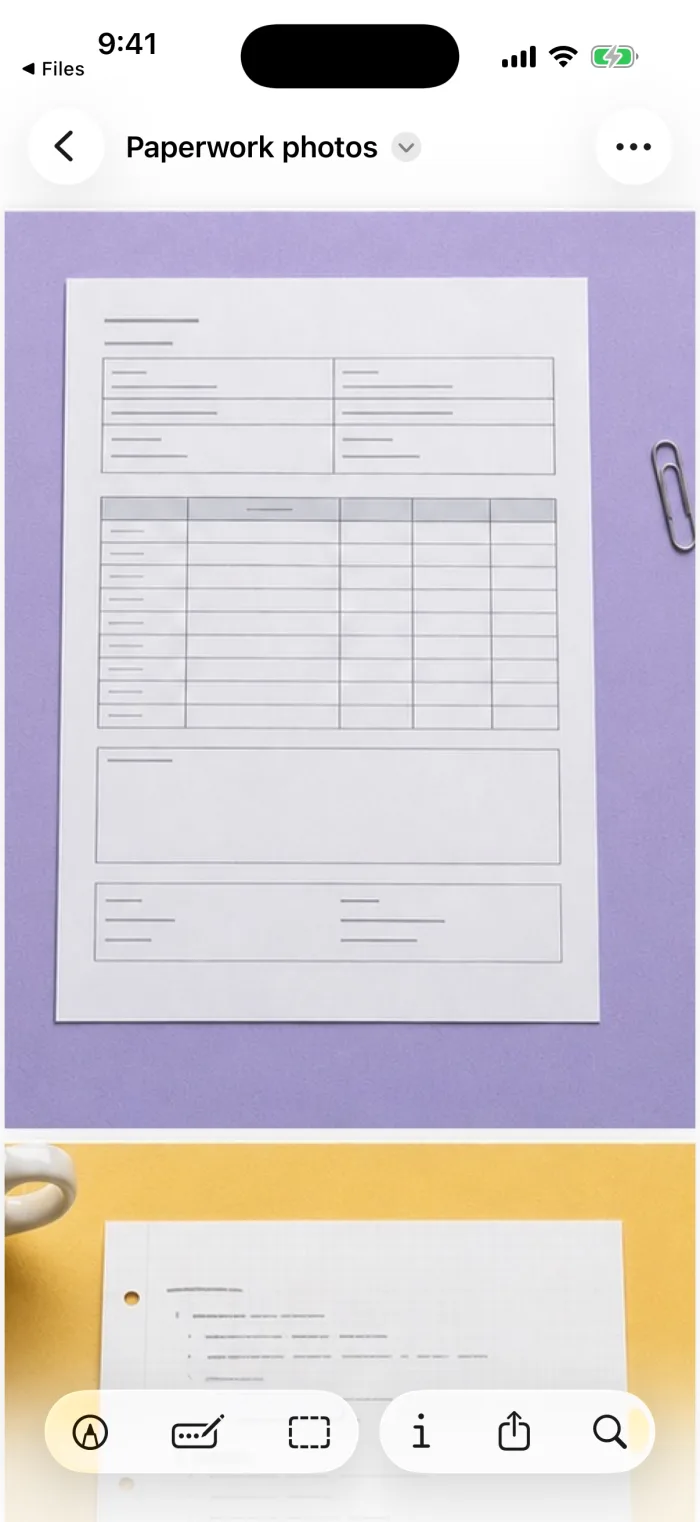 Step 1With the PDF open, tap the Markup button.
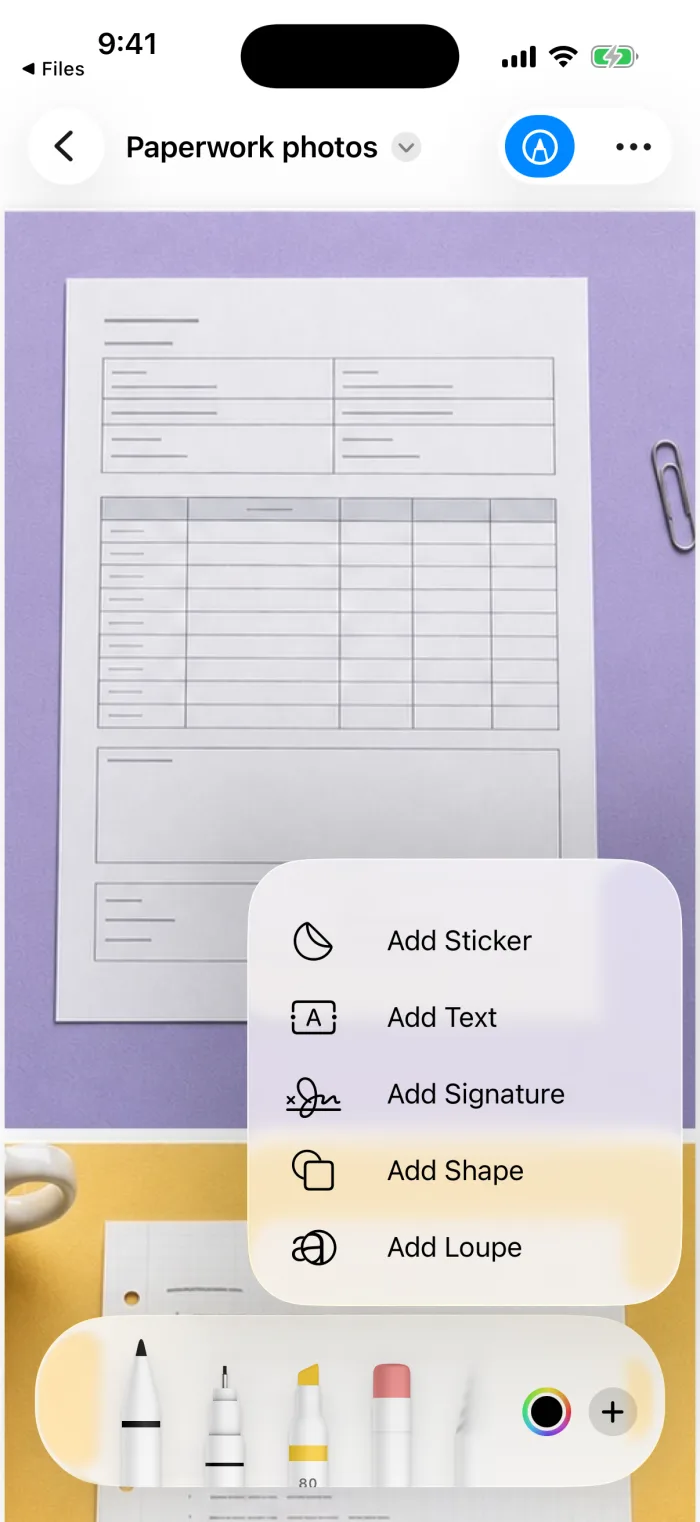 Step 2In the Markup toolbar, tap + › Add Signature.
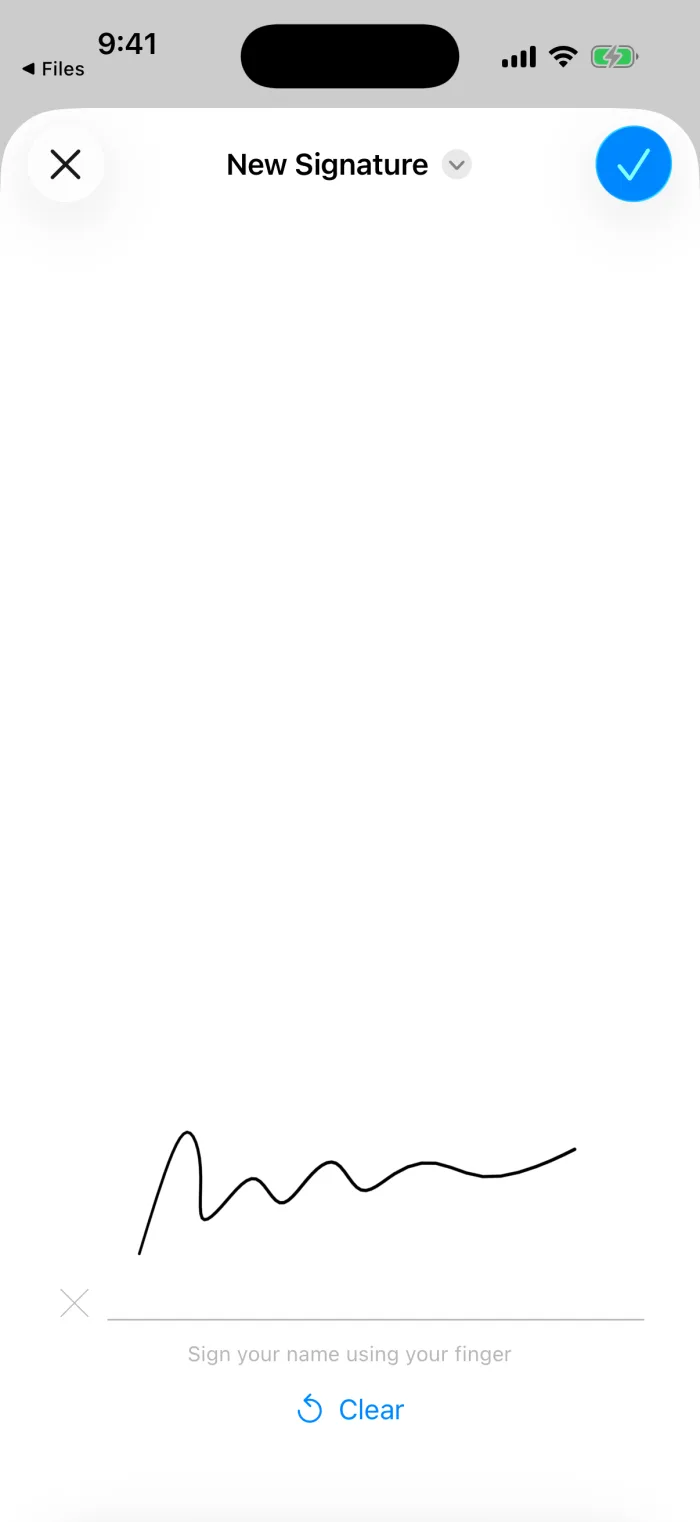 Step 3Tap a saved signature, or sign with your finger and tap Done.
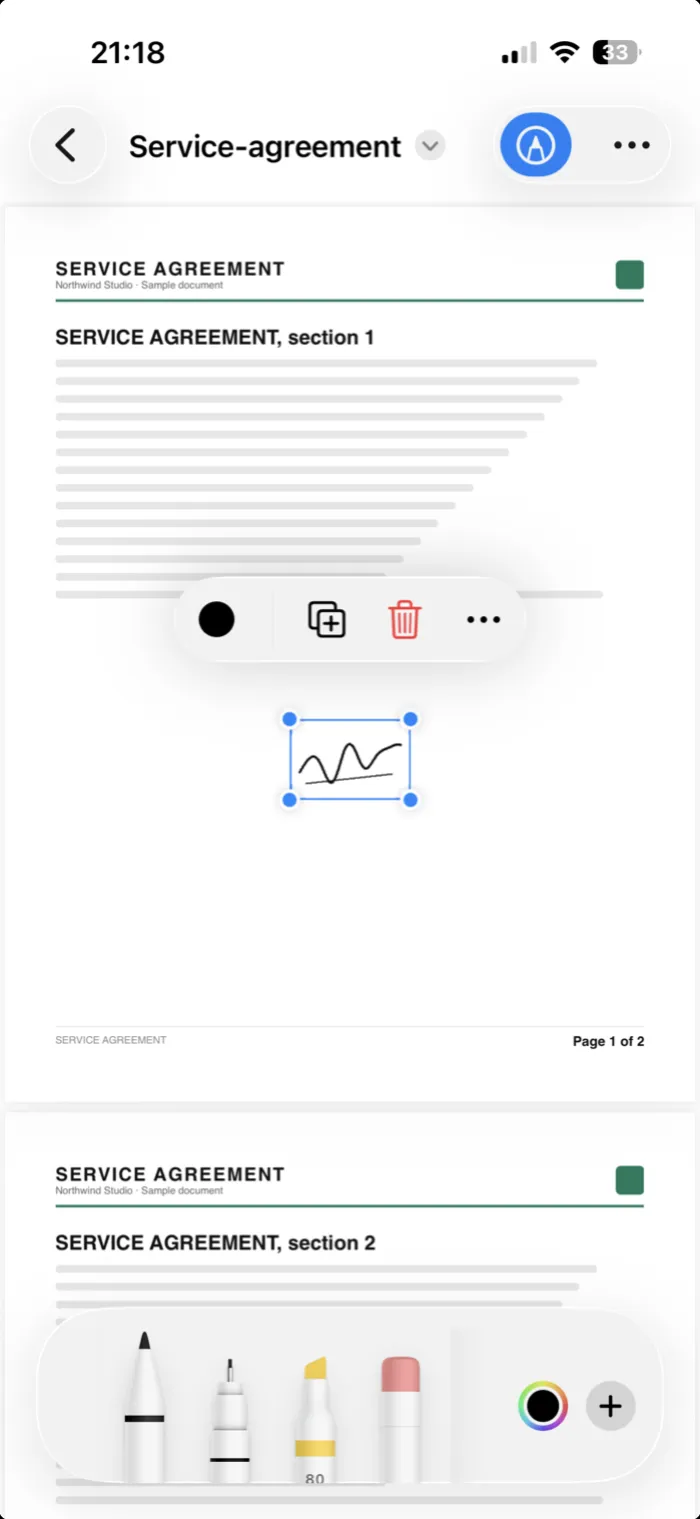 Step 4Drag it into place, resize with the blue dots, then tap Done.
Place a drawn signature with PDFee
PDFee saves the signature into the page and gives you a separate signed copy, so it can’t be moved or removed later and your original stays as it was. Signing happens on your iPhone; nothing is uploaded.
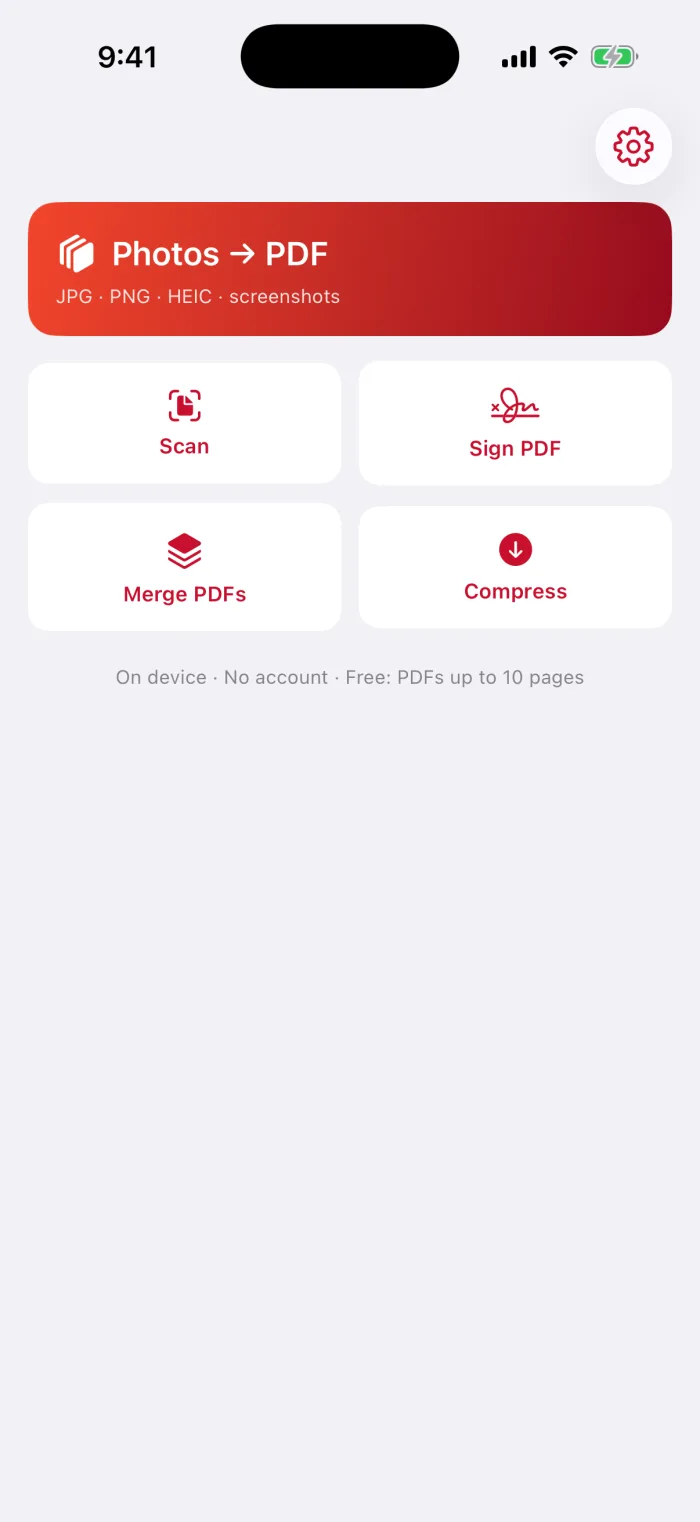
Open PDFee and tap Sign PDF
Then tap Choose PDF and pick the file in Files.
Tap Add signature and draw it
Sign with your finger, tap Clear to start over, then tap Use.

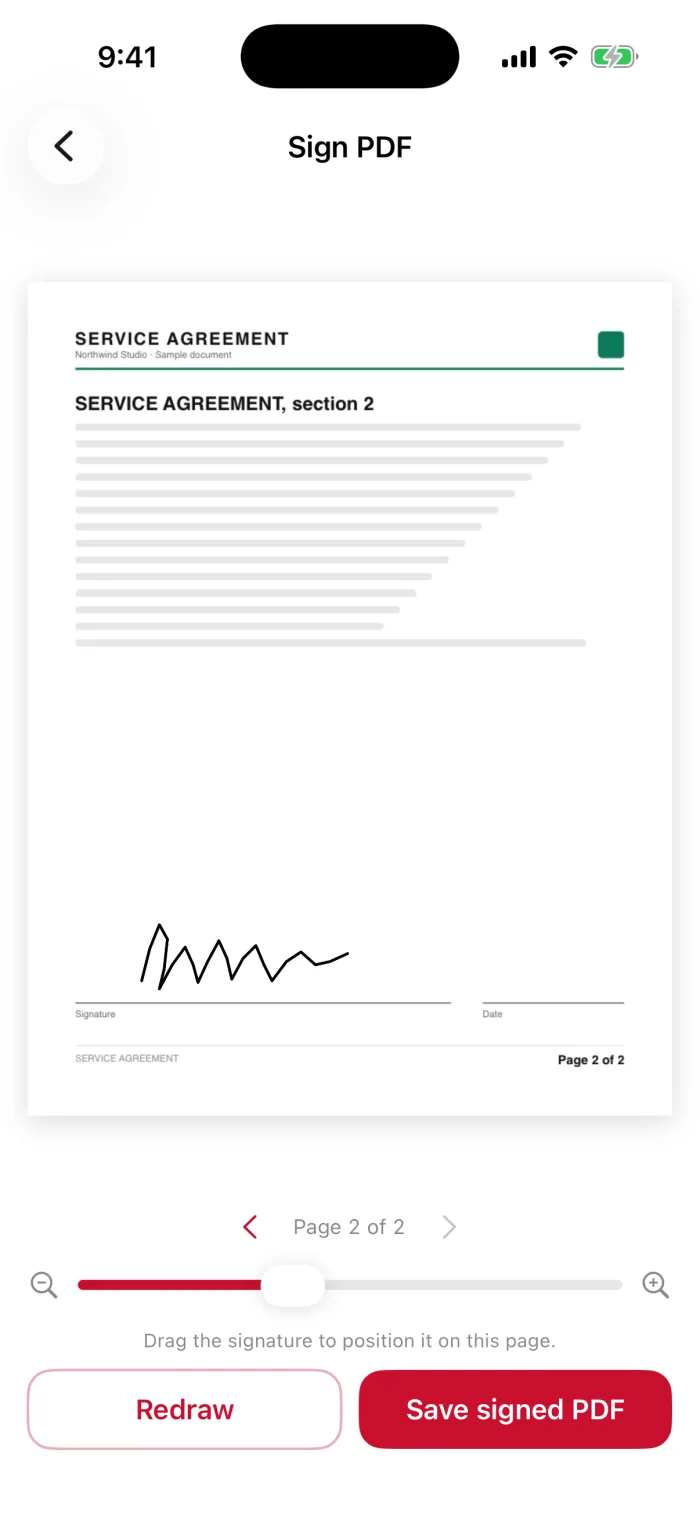
Drag it into place
Move the signature to the line. Use the slider to make it bigger or smaller.
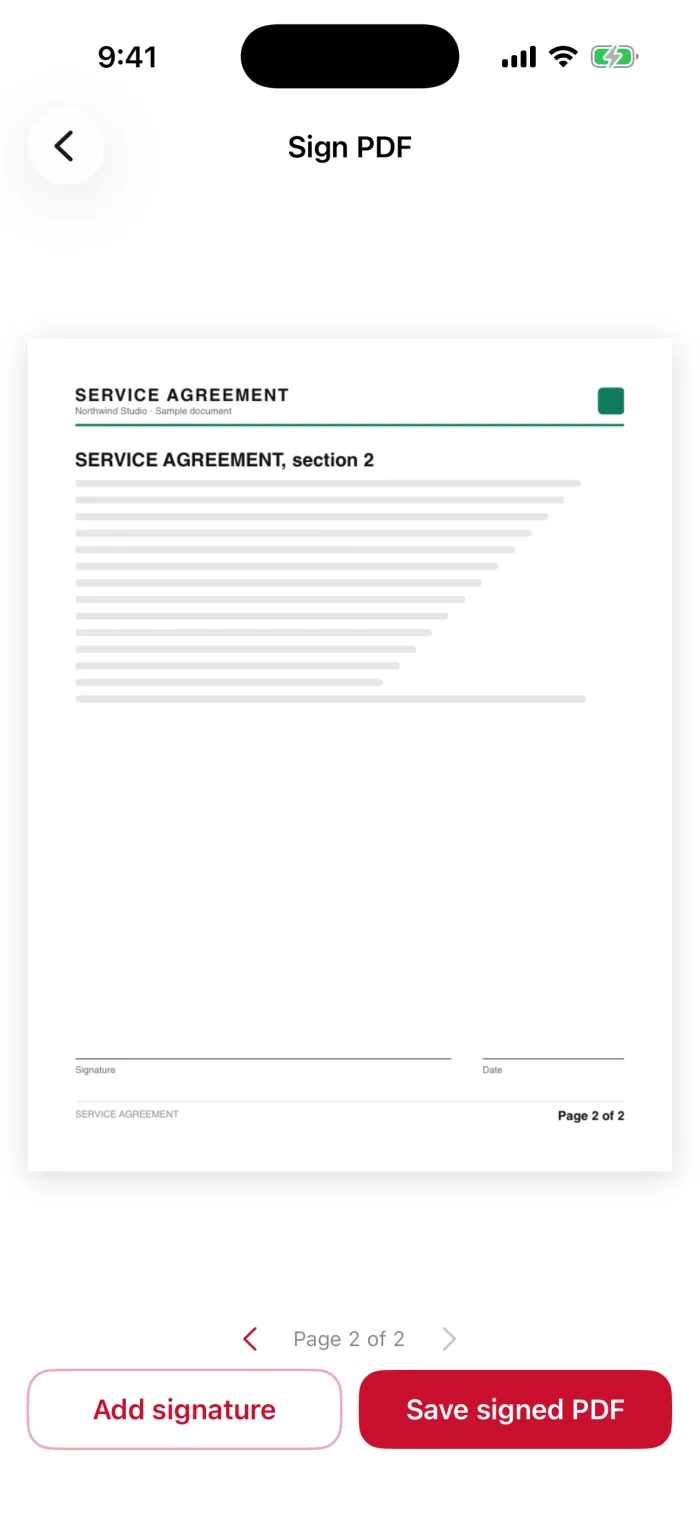
Pick the page
For a PDF with more pages, use the arrows under the page to go to the one to sign.
Tap Save signed PDF
The signed copy opens in the share sheet, ready to send or save.
Check the selected page and save a copy
- Reply by emailChoose Mail in the share sheet and send it back.
- Save itSave to Files keeps a copy with your documents.
- Paper to sign?First scan the paper document, then sign the PDF.
What kind of signature is this?
Questions
How can I sign a PDF that was emailed to me?
Tap the attachment in Mail, tap the Markup button, then tap + › Add Signature. Place it, tap Done, and reply with the signed PDF.
How do I digitally sign a PDF on my phone?
Both methods here add a drawn signature: a picture of your handwriting on the page. A certificate-based digital signature, which proves who signed, needs a dedicated e-signature service.
Can I do a digital signature on my iPhone?
You can add a handwritten-style signature with Markup or PDFee. Whether that’s accepted depends on who asks for it; check with them for official documents.
How do I sign and write on a PDF on iPhone?
In Markup, tap + and choose Add Signature for your signature or Add Text for typed text. PDFee only adds a signature.
What to do next