How to Scan Multiple Pages into One PDF on iPhone
The iPhone scanner keeps adding pages until you tell it to stop, so a whole letter or contract ends up in one PDF. Here’s how to keep the pages together, in order, with none missing.
 PDFee teamUpdated September 26, 2026 · 4 min readTestediPhone 14 Pro · iOS 26.6.2 · PDFee 1.6
On this page
Quick answer
Start a scan in Notes (Attachment button › Scan Documents). After each page, just place the next one in view. Tap the thumbnail to check them, then tap the checkmark: all pages are saved together as one PDF.
- 1Tap Scan
- 2Capture every page
- 3Check order, Create PDF
New to scanning on iPhone? Start with how to scan a document to PDF.
Keep scanning in the same Apple Notes session
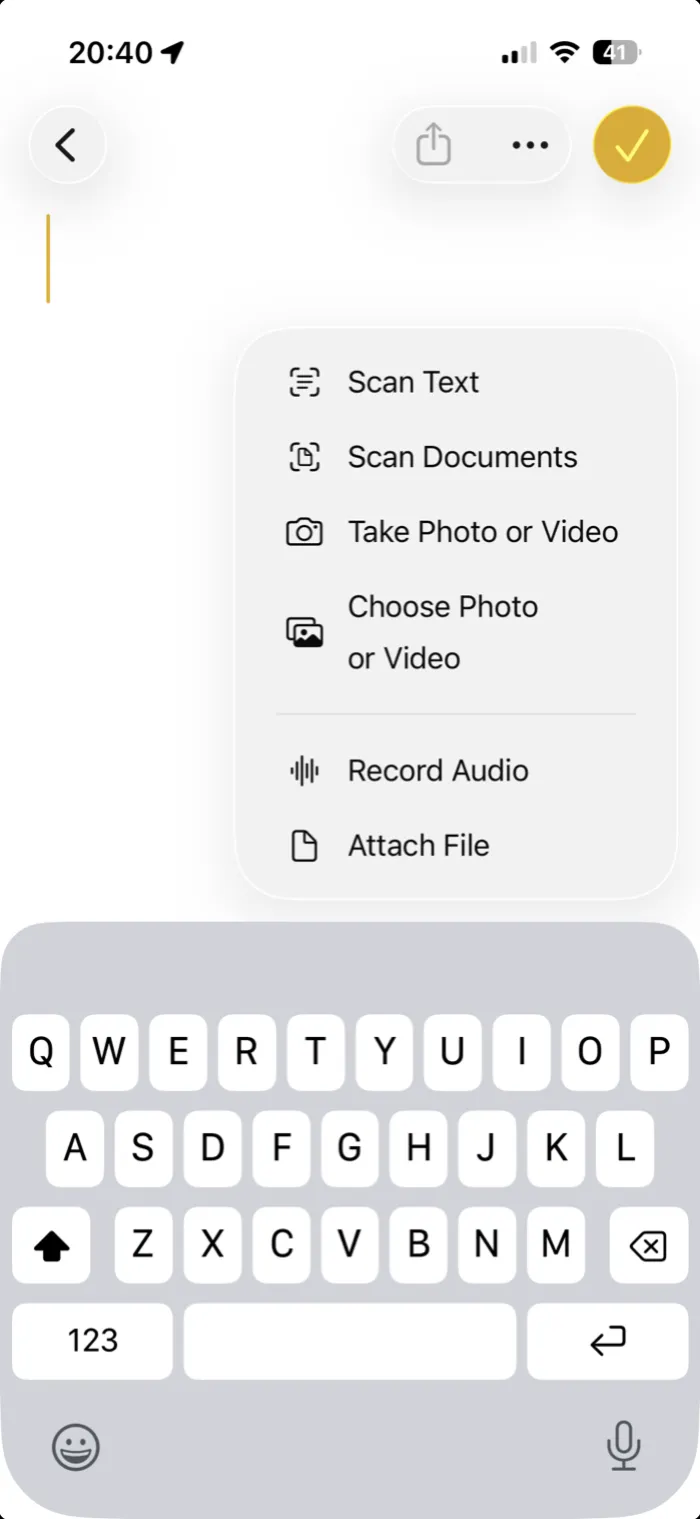 Step 1In a note, tap the Attachment button, then Scan Documents.
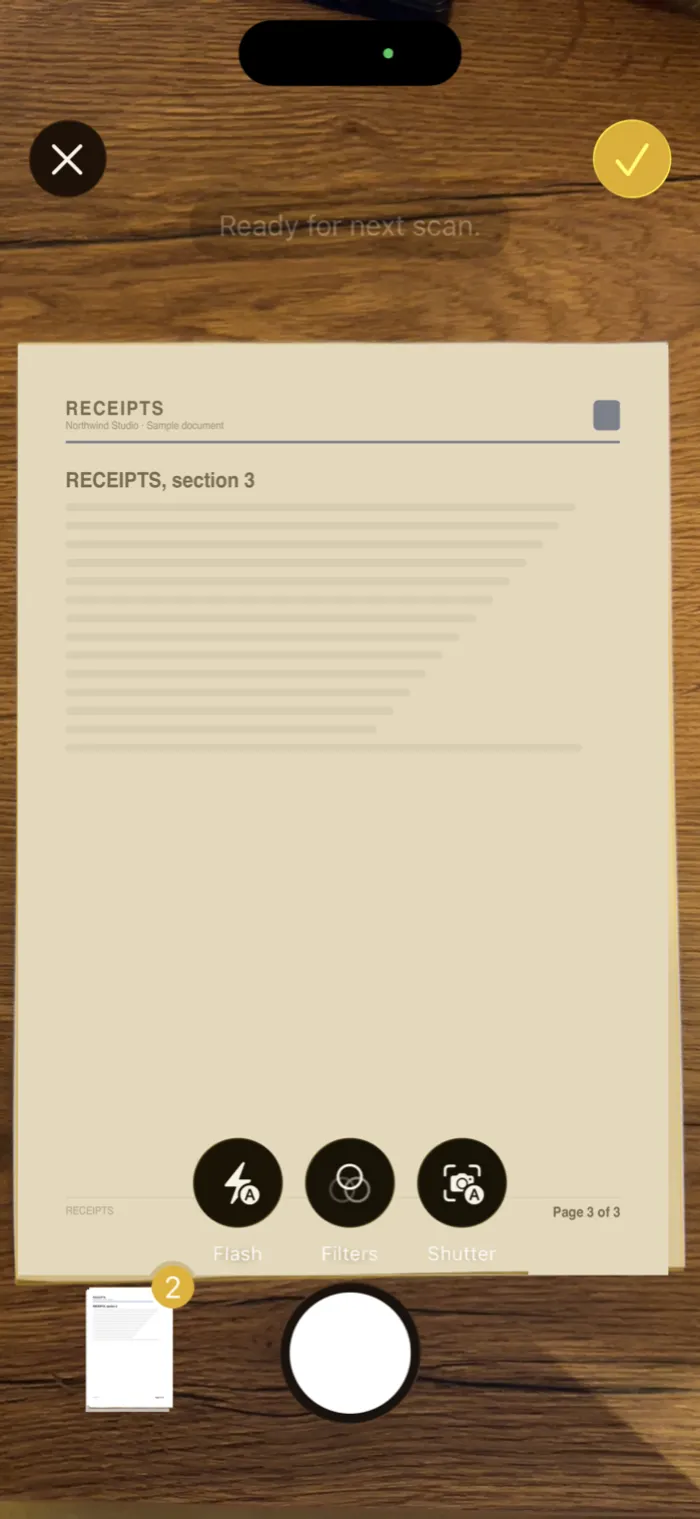 Step 2Scan page 1. Don’t finish yet: place page 2 in view and it captures again in Auto.
- Step 3The thumbnail in the corner shows the last page. Tap it to check or retake one.
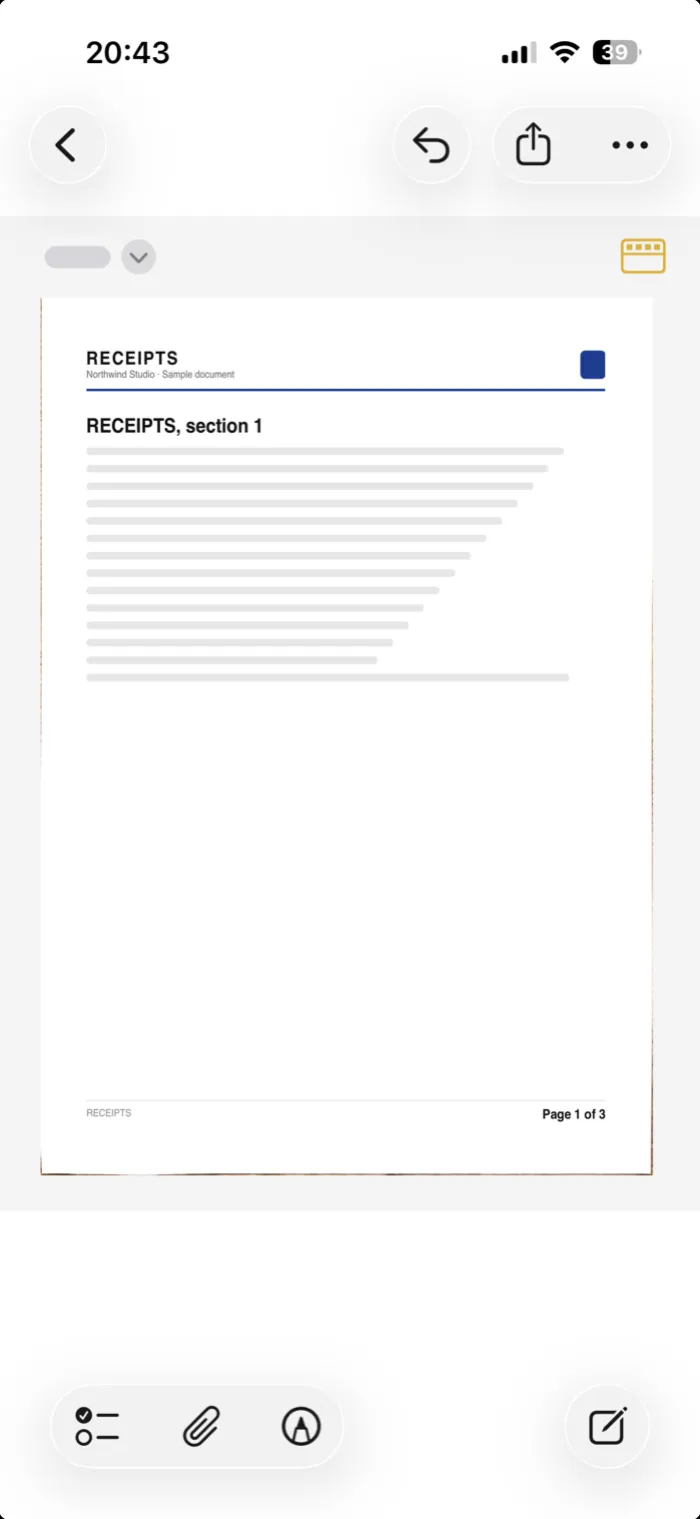 Step 4When all pages are in, tap the checkmark. They’re saved together in the note.
Capture multiple pages with PDFee
PDFee uses the same Apple scanner. After you tap the checkmark, it shows every page numbered, so you can check the order and page count before the PDF is made.
Tap Scan and capture every page
Keep placing the next page in view. The thumbnail in the corner shows the last page captured, with the page count.
Tap the checkmark
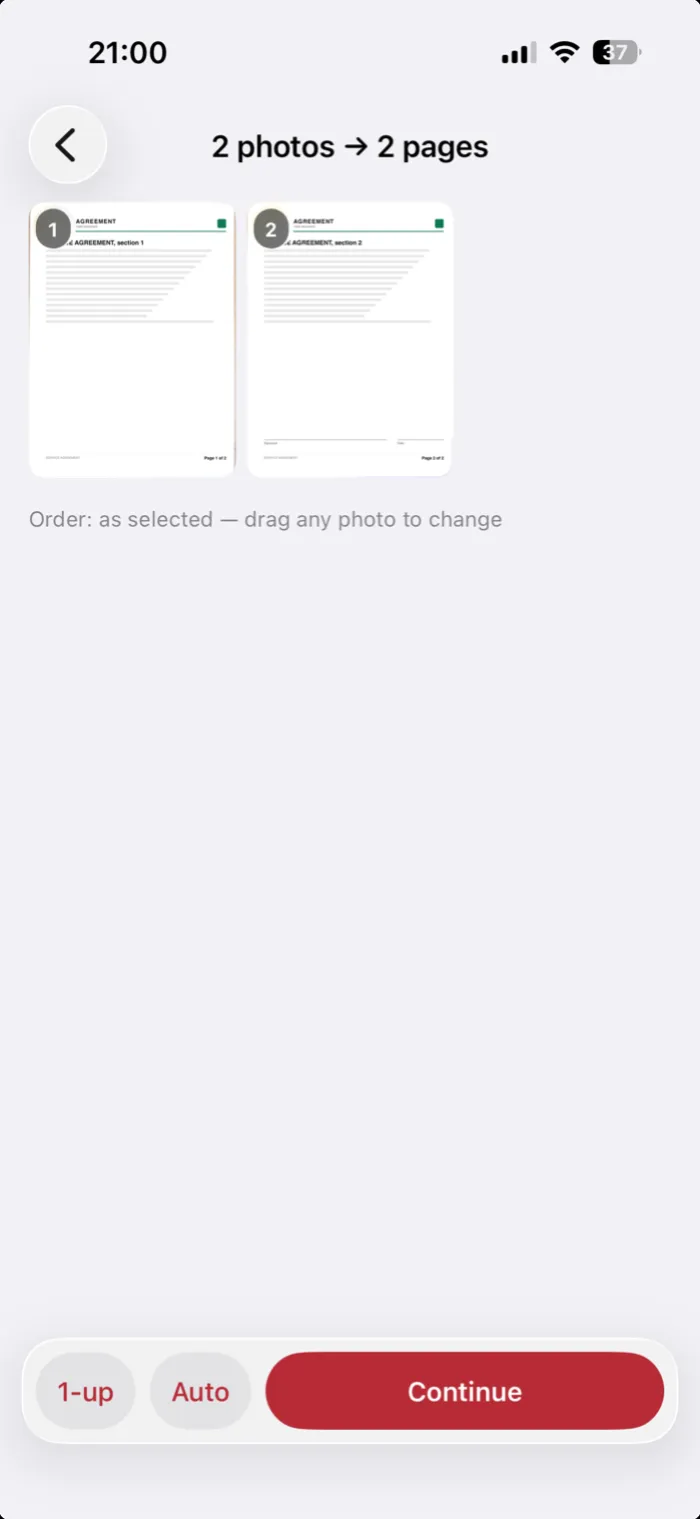
All pages open in PDFee, cropped and straightened, numbered in capture order.
Check the order and drag to fix
The title shows how many pages you have. Drag a page to move it.
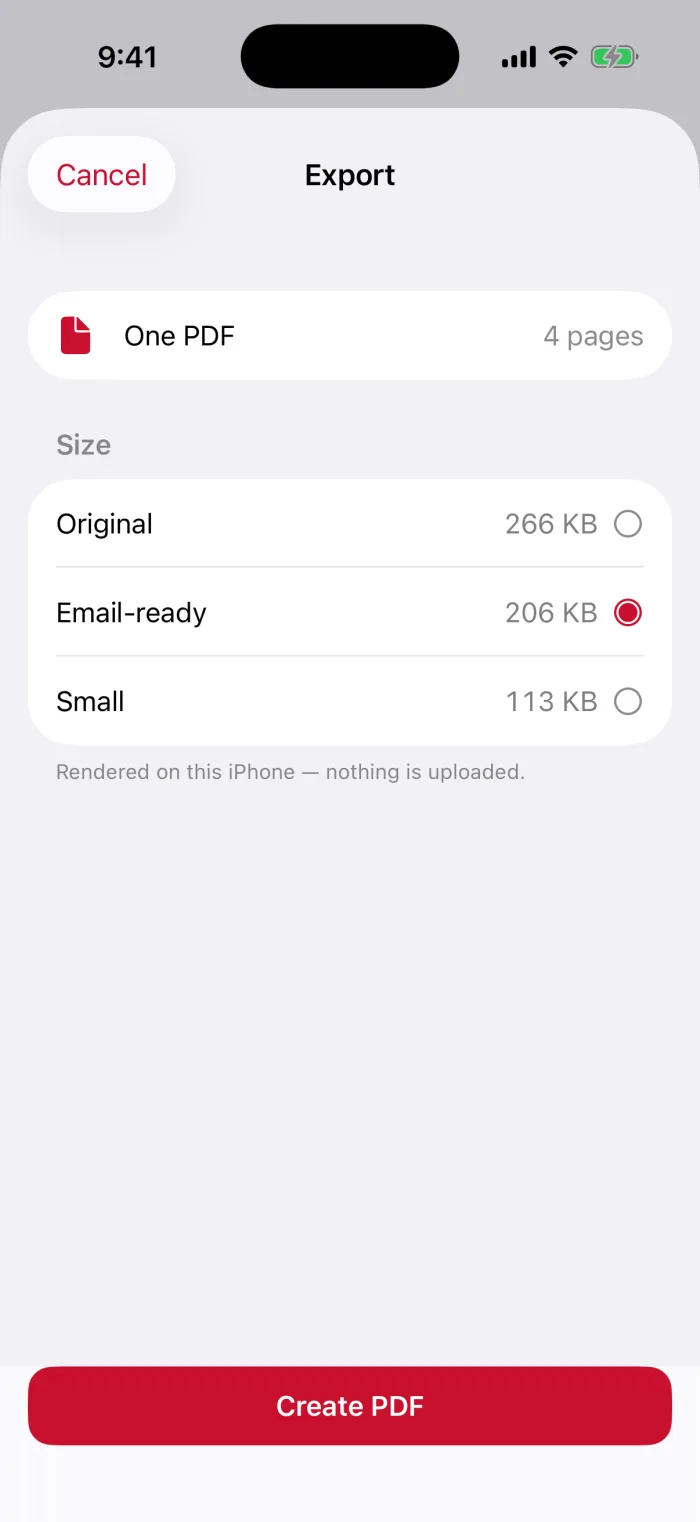
Tap Continue, then Create PDF
Choose a page size and file size. The share sheet opens with one PDF.
Review page order, crop and missing pages
- Retake before finishingTap the thumbnail, go to the page and tap Retake. It keeps its place in the order.
- Fix a cropIn the same review screen, drag the corners to the edges of the paper.
- Wrong orderIn PDFee, drag pages into place before creating the PDF. In Notes, keep the stack in order while scanning.
- Forgot a pageScan the missing page on its own and combine the two PDFs.
Save one PDF and confirm the page count
What if the PDF is too large?
Every scanned page is an image, so long documents get big. In PDFee, choose Email-ready or Small before creating the PDF, or compress the PDF afterwards.
Questions
How can I scan multiple pages as one document on my phone?
Keep scanning in the same session: after each page, place the next one in view instead of tapping the checkmark. All pages end up in one PDF.
How do I create a multi-page PDF on iPhone?
From paper: scan all pages in one session with Notes, Files or PDFee. From photos: see the guide on combining multiple photos into one PDF.
Can I scan multiple pages at once?
One page at a time, but in one go: the scanner keeps adding pages until you finish, and everything is saved as one document.
What if I forgot a page?
In Notes you can add scans to the same document. In PDFee, scan the missing page separately and combine the two PDFs with Merge PDFs.
What to do next