How to Convert a Photo to PDF on iPhone
Your iPhone can already turn a photo into a PDF. You don’t need a website or a computer. Here are the two built-in ways, and when an app like PDFee is quicker.
 PDFee teamUpdated September 27, 2026 · 6 min readTestediPhone 14 Pro · iOS 26.6.2 · PDFee 1.6
On this page
Quick answer
Save the photo to the Files app, touch and hold it, then tap Quick Actions › Create PDF. The PDF appears next to the photo.
- 1Pick the photos
- 2Drag into order
- 3Create PDF
Which method should you use?
Save a photo as PDF with the built-in tools
Option A: The Files app
Best for one photo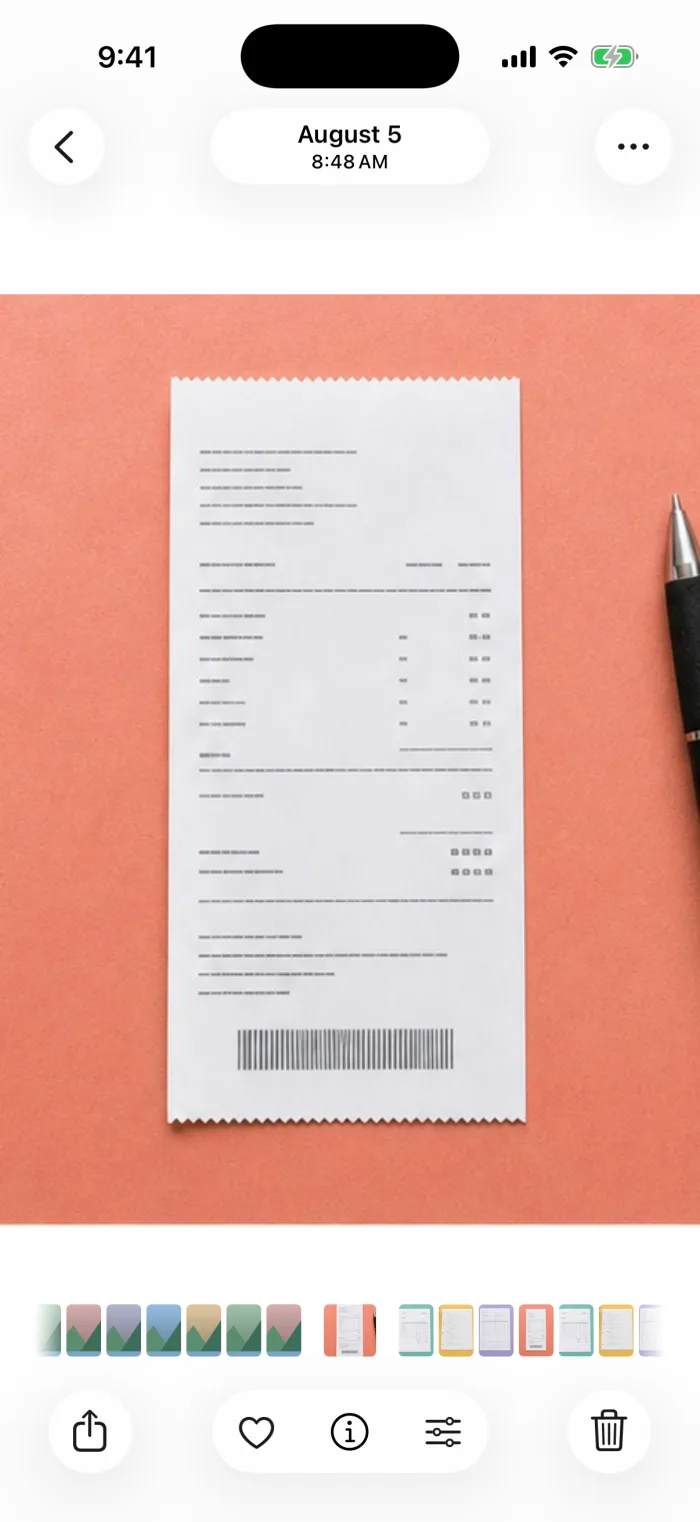 Step 1Open the photo in Photos and tap Share.
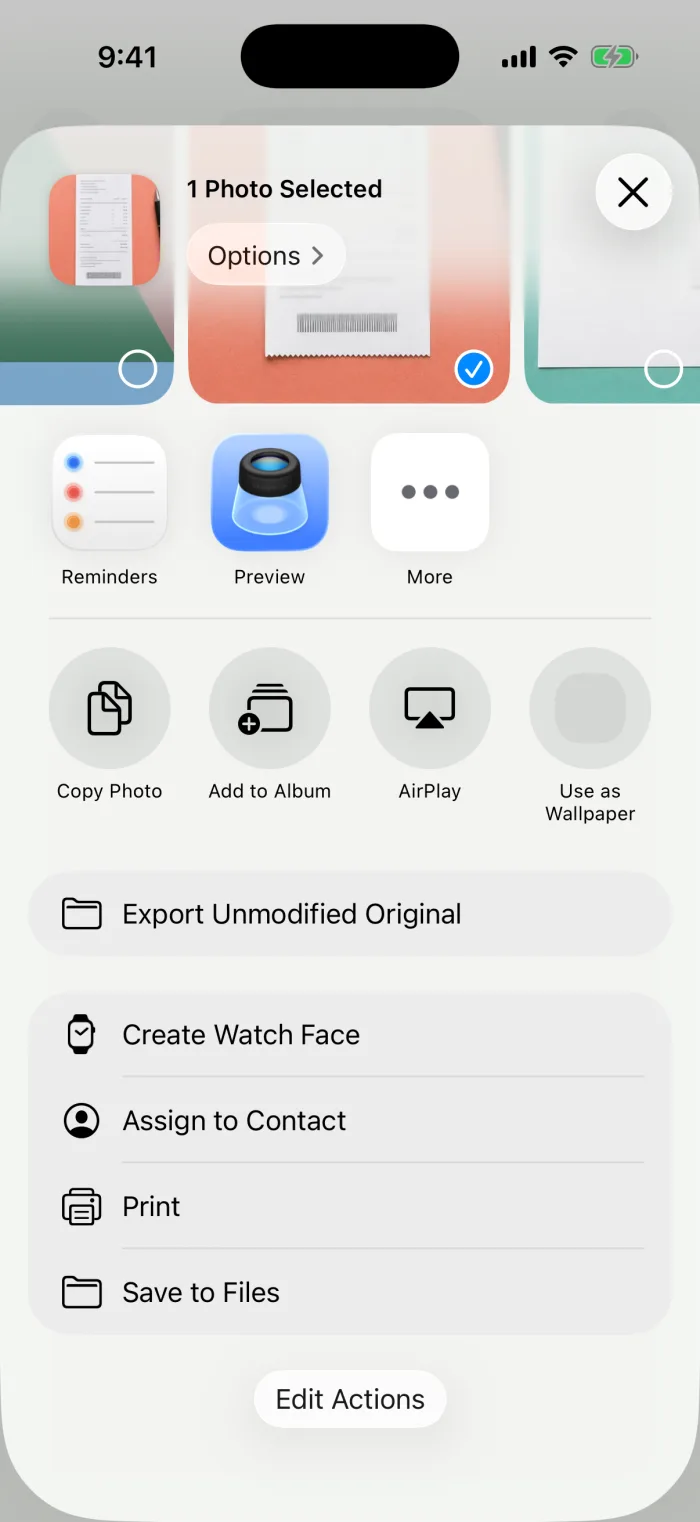 Step 2Scroll down, tap Save to Files, pick a folder and tap Save.
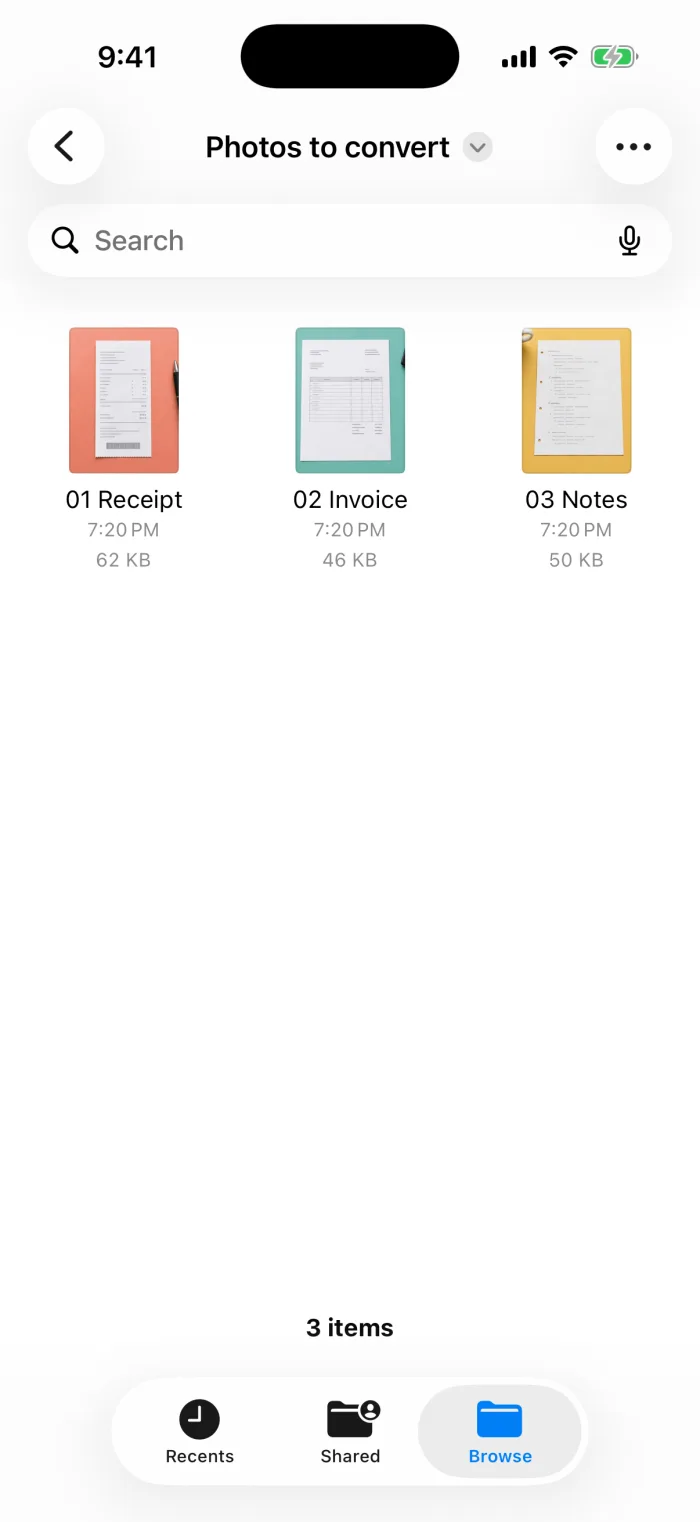 Step 3Open Files and go to that folder.
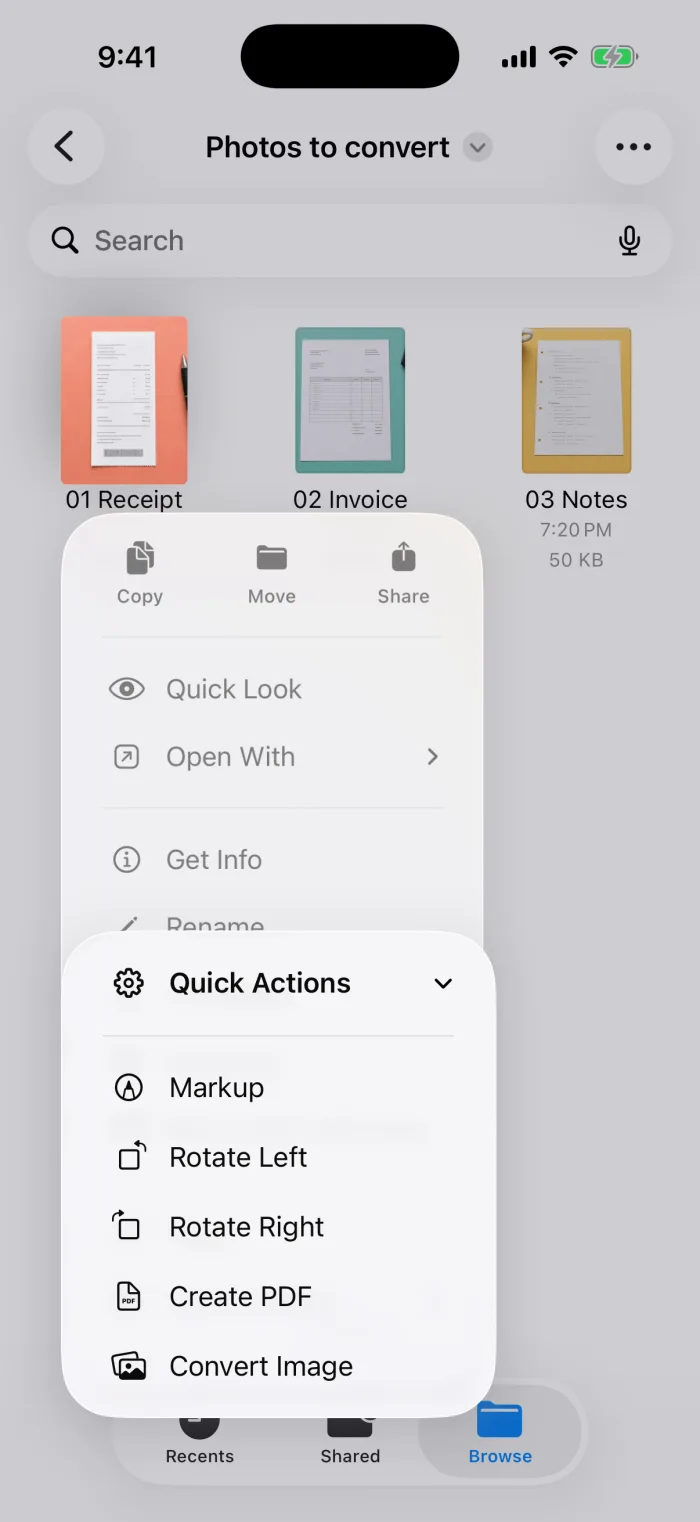 Step 4Touch and hold the photo, then tap Quick Actions › Create PDF.
Option B: The Print option
No saving first- Step 1Open the photo in Photos, tap Share, scroll down and tap Print.
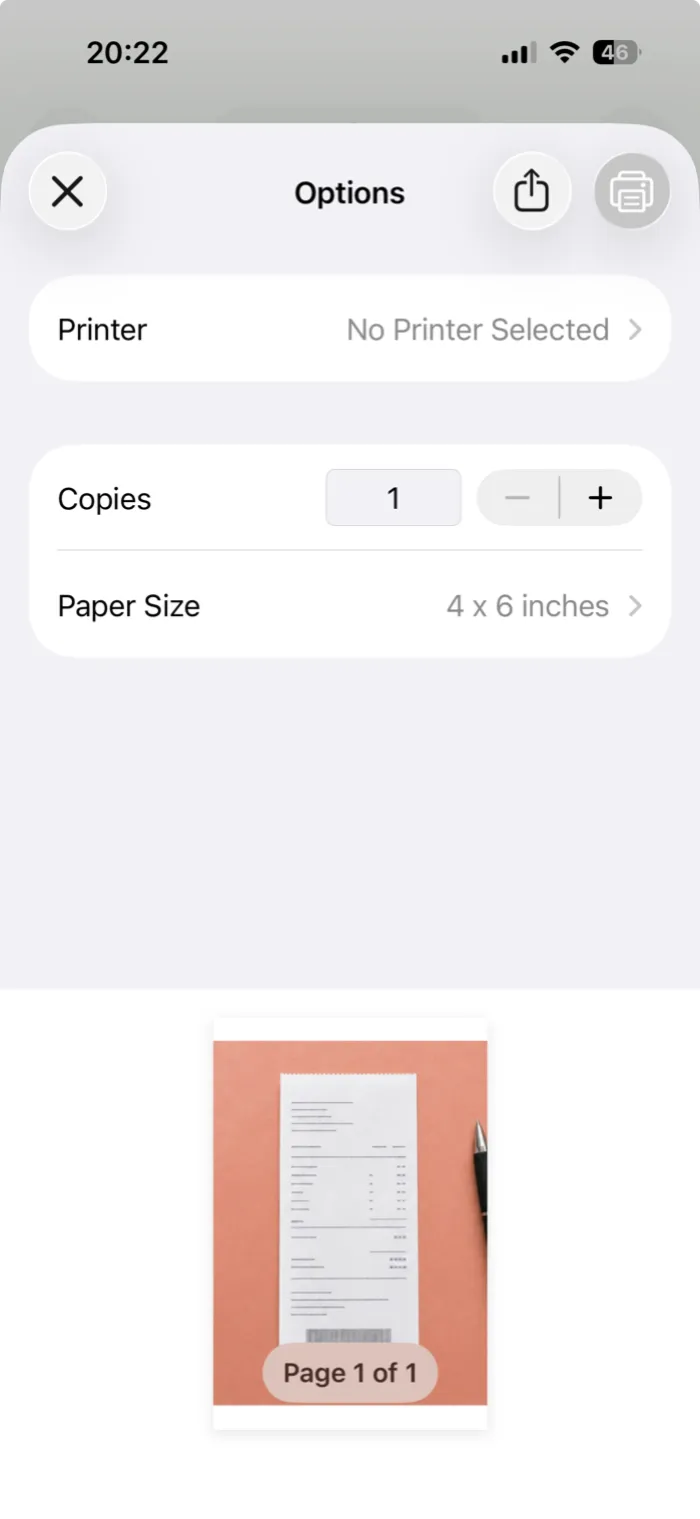 Step 2On Print Options, tap the Share button at the top. On older iOS versions, pinch outward on the preview first.
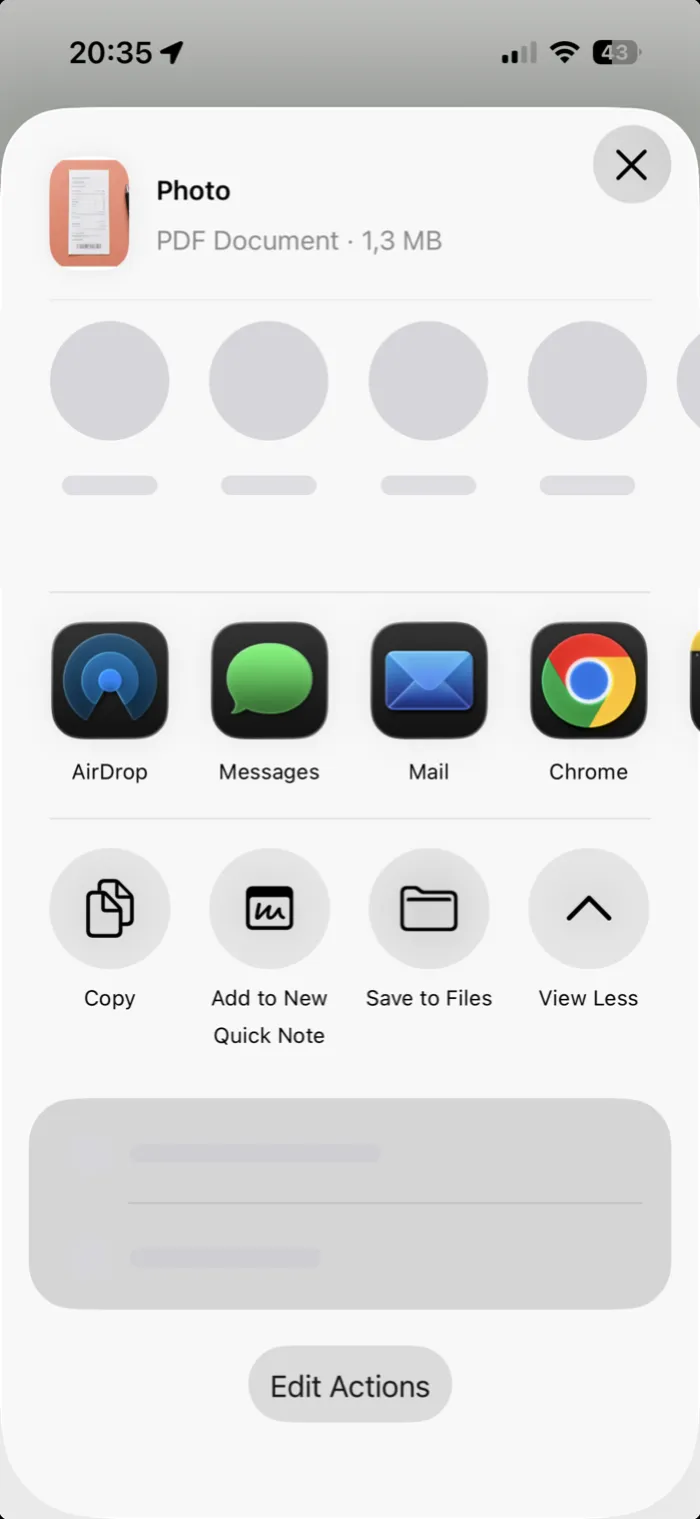 Step 3Choose Save to Files, or send the PDF straight to Mail or Messages.
Quick for a single photo. Page size and margins come from the print settings, so the result can look different from Option A.
Create a PDF with PDFee
PDFee helps when the built-in tools get fiddly: several photos, an order that matters, a standard page size, or a file that has to be small enough to email. Everything is processed on your iPhone: no account, nothing uploaded.
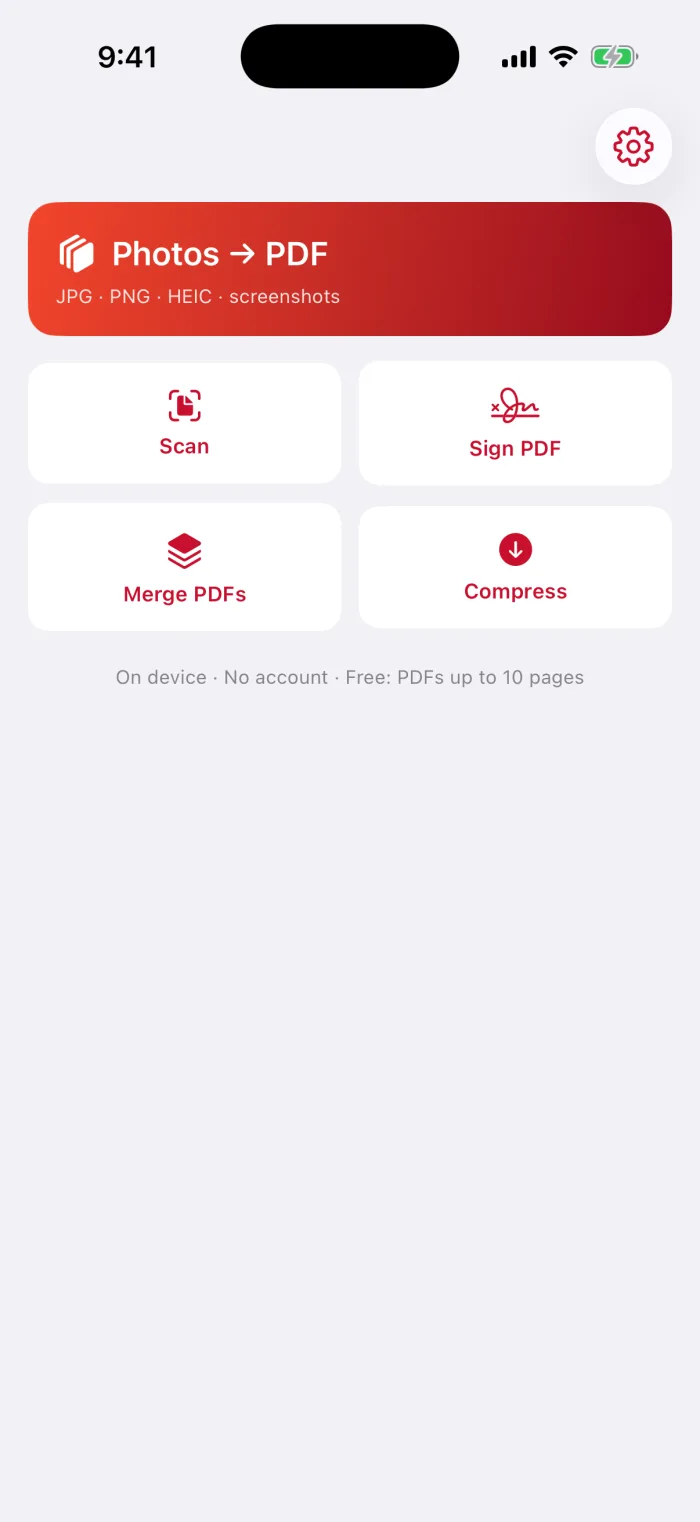
Open PDFee and tap Photos → PDF
It’s the large red card at the top of the home screen.
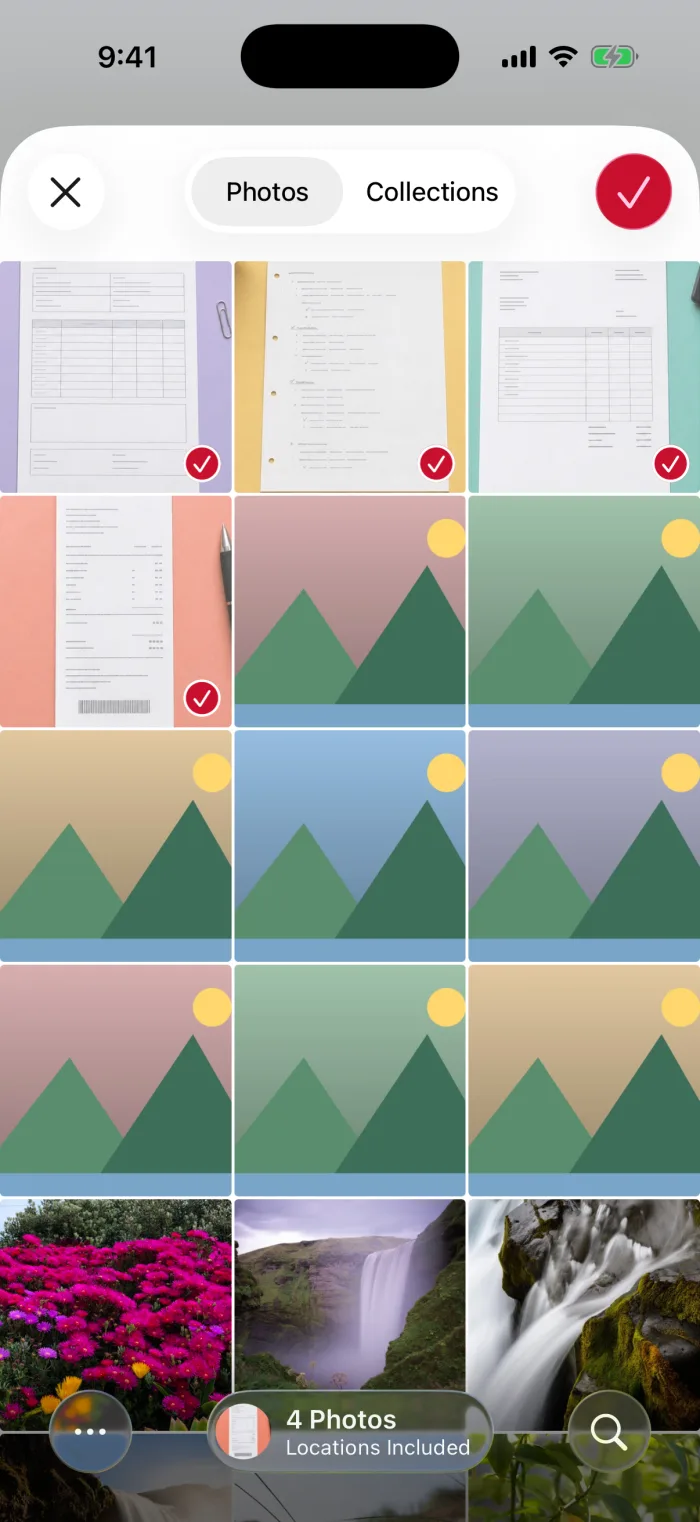
Select your photos
JPG, PNG, HEIC and screenshots all work. They start in the order you tapped them.
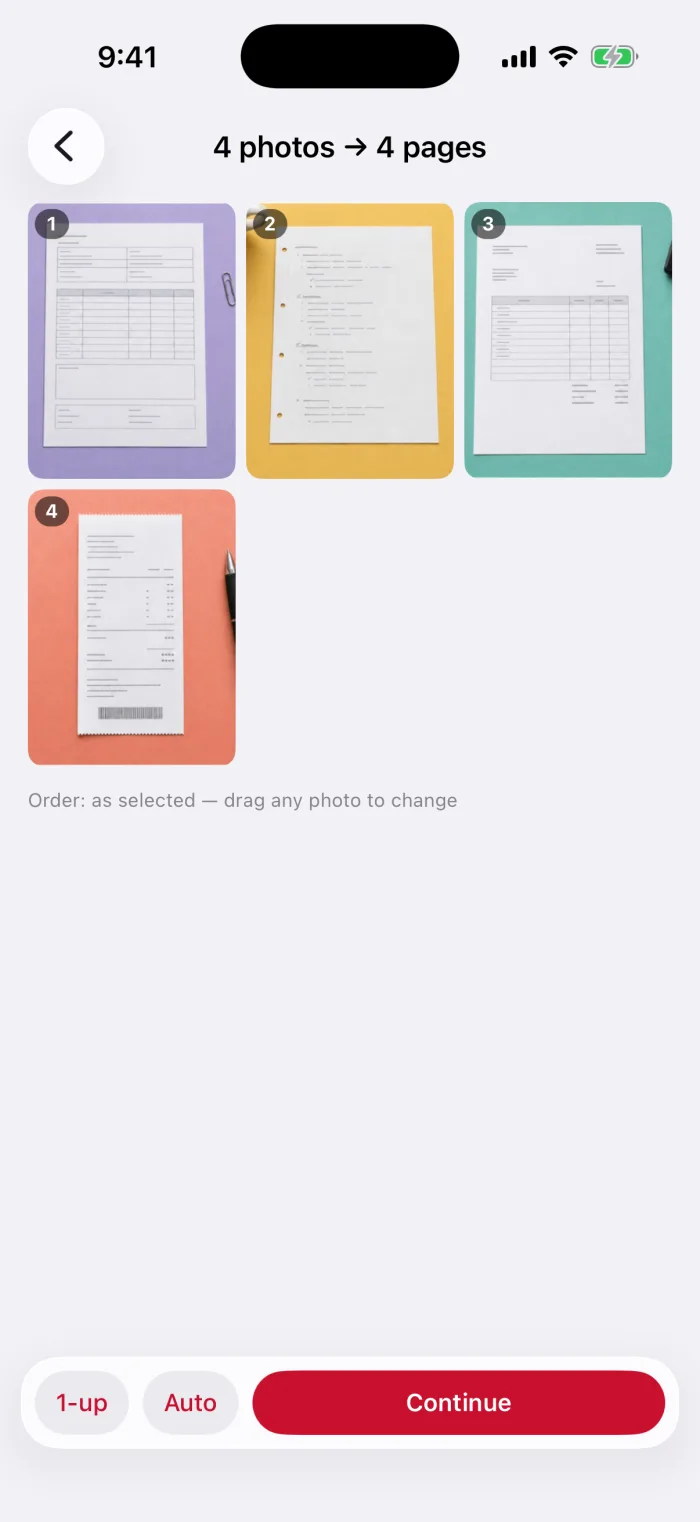
Drag them into order
Touch and hold a photo, then drop it where it belongs. The page numbers update as you go.
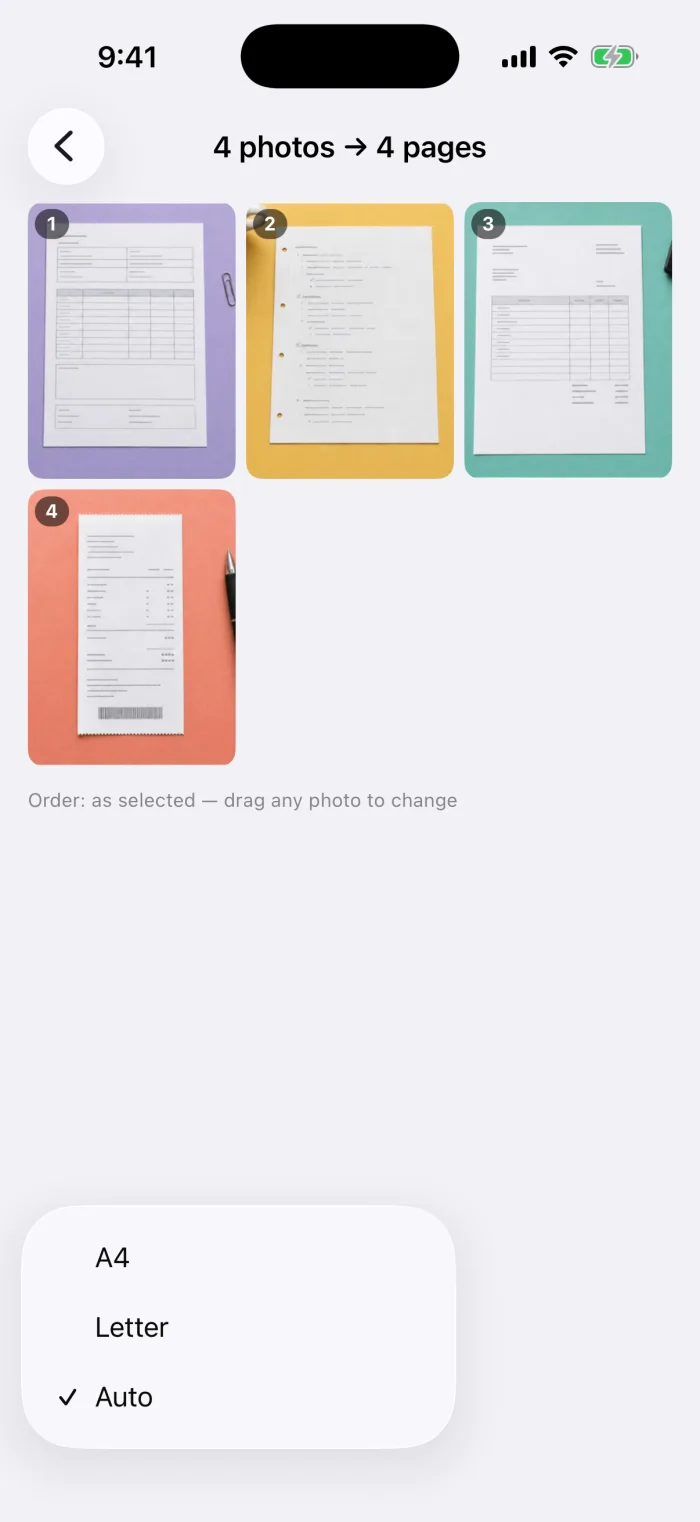
Choose a page size, then tap Continue
Tap the size button in the bottom bar: Auto keeps each photo’s shape, Letter and A4 give print-ready pages.
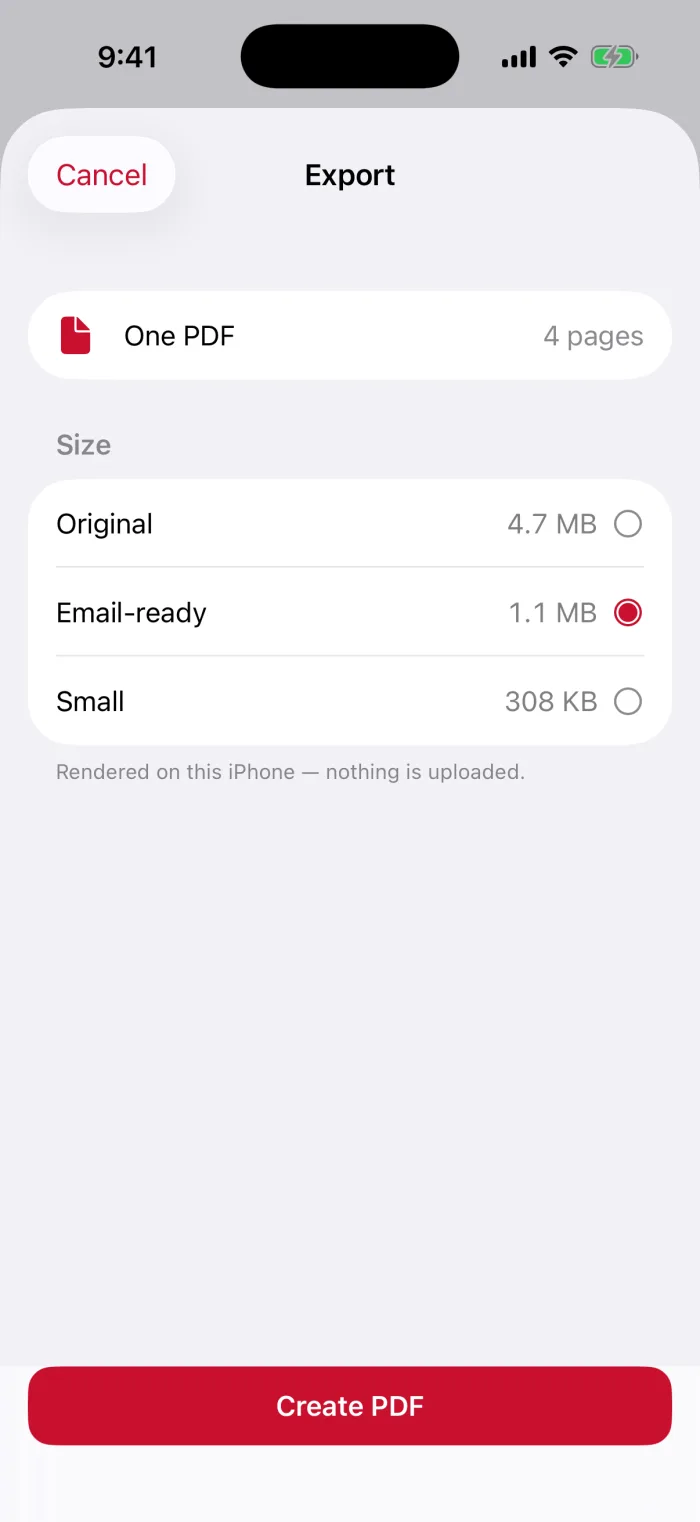
Pick a file size and tap Create PDF
Original for full quality, Email-ready or Small for a lighter file. PDFee shows the estimated size first.
Share or save it
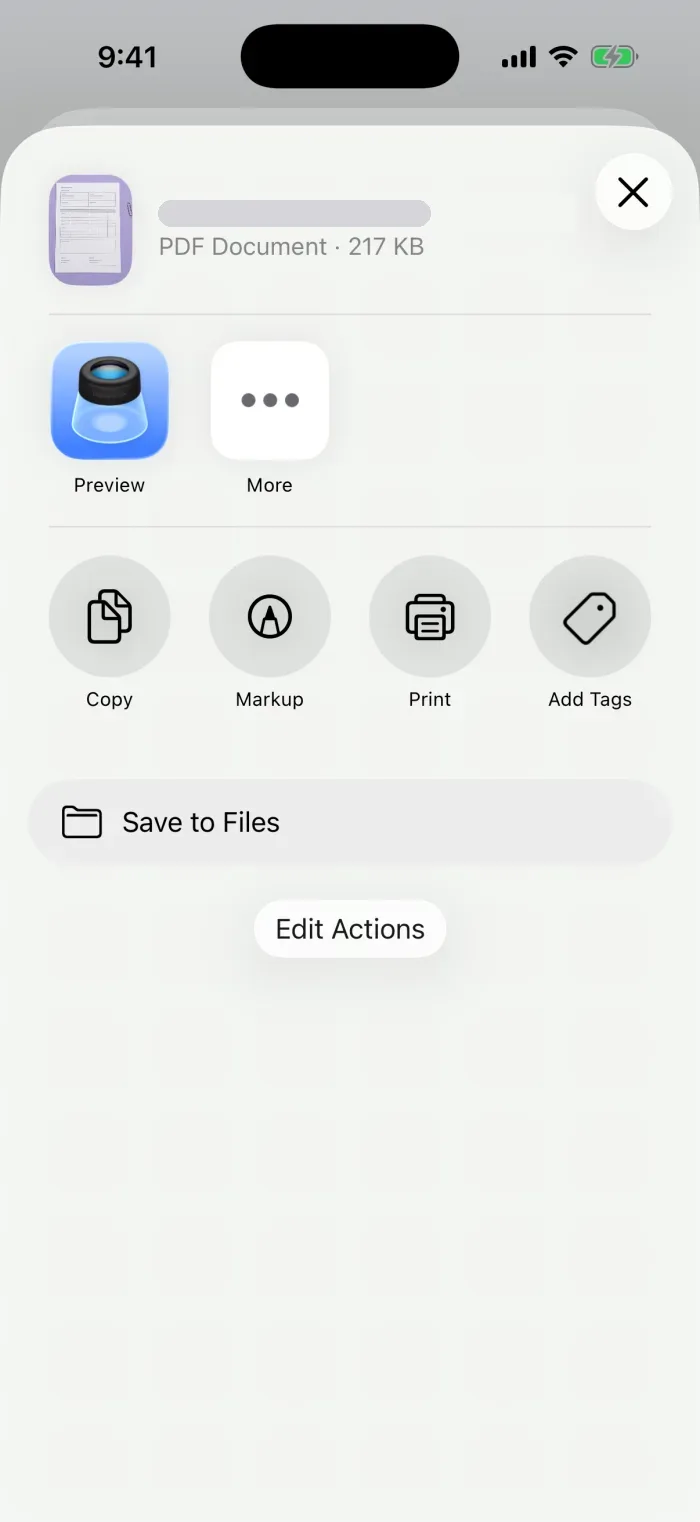
The share sheet opens. Tap Save to Files, or send it with Mail, Messages or AirDrop.
JPG, PNG and HEIC: choose the right input
You don’t need to convert anything first. All three formats work with both methods.
Check page size, orientation and image quality
- Share it right awayMail, Messages or AirDrop, from the share sheet.
- Save itSave to Files. On My iPhone keeps it on the device; iCloud Drive syncs it.
- Find it laterFiles app › Recents, or search for the name.
- Too big to email?Make the PDF smaller
- Separate PDFs to join?Combine existing PDF files
Questions
Can I convert a picture to PDF on my phone?
Yes. Both methods above run on the iPhone itself, with no computer and no website.
Is there a PDF converter in iPhone?
There is no separate converter app. But the Files app can create a PDF from a photo (Option A), and the Print option can save one too (Option B).
What is the easiest way to convert a photo to PDF?
For one photo, the Files app. For several photos in a set order, or on Letter or A4 pages, a dedicated app is quicker.
Does converting a photo to PDF lower the quality?
Not by itself. The photo is placed on the page as it is. Only a smaller export size, or compressing the PDF later, reduces the quality.
What to do next