How to Scan a Document to PDF on iPhone
Your iPhone has a document scanner built in. It finds the edges, straightens the page and saves a PDF, all without an extra app. Here’s how, and when PDFee saves a few steps.
 PDFee teamUpdated September 27, 2026 · 5 min readTestediPhone 14 Pro · iOS 26.6.2 · PDFee 1.6
On this page
Quick answer
Open Notes, start a new note, tap the Attachment button (paperclip) and choose Scan Documents. Hold the iPhone over the page, tap the checkmark when you’re done, then share the scan and choose Save to Files to get a PDF.
- 1Tap Scan
- 2Capture the pages
- 3Create PDF
Which method should you use?
Scan with Apple Notes
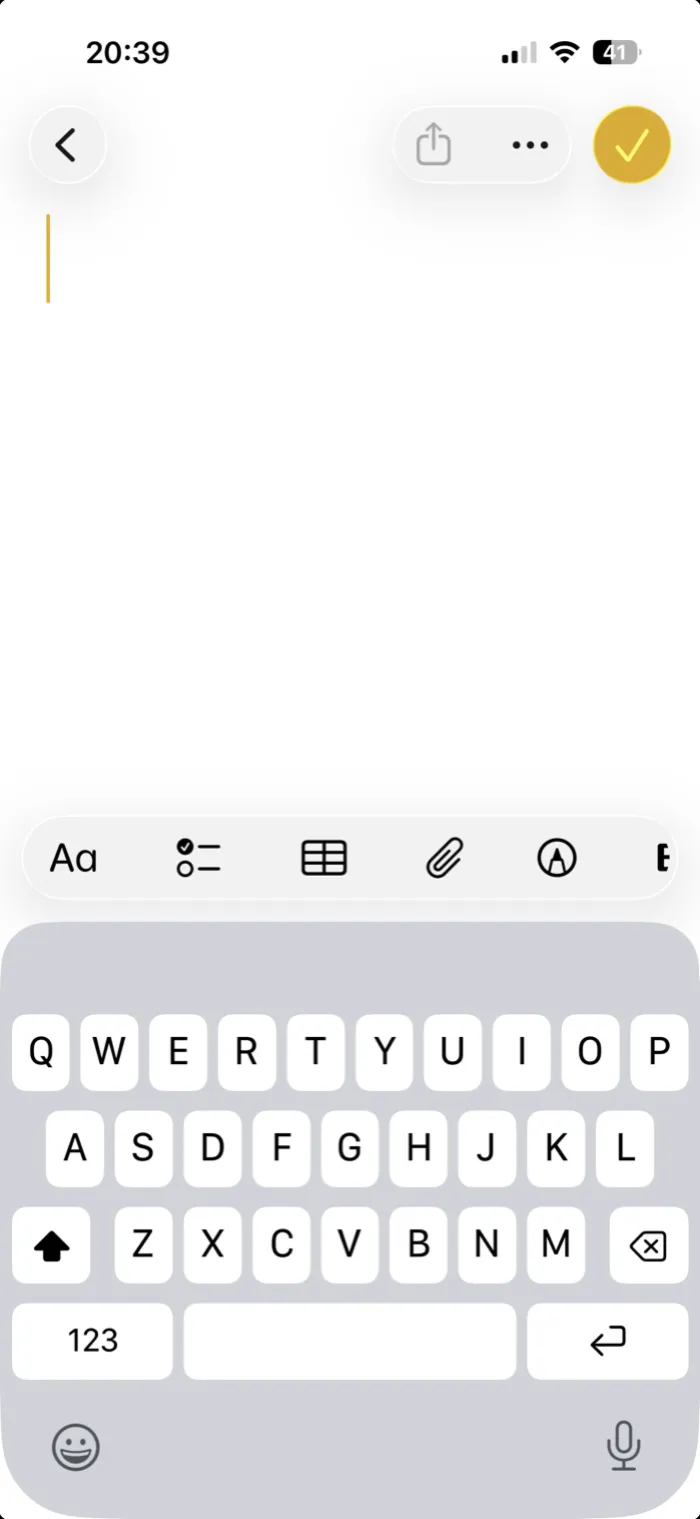 Step 1Open Notes, create a new note and tap the Attachment button (paperclip).
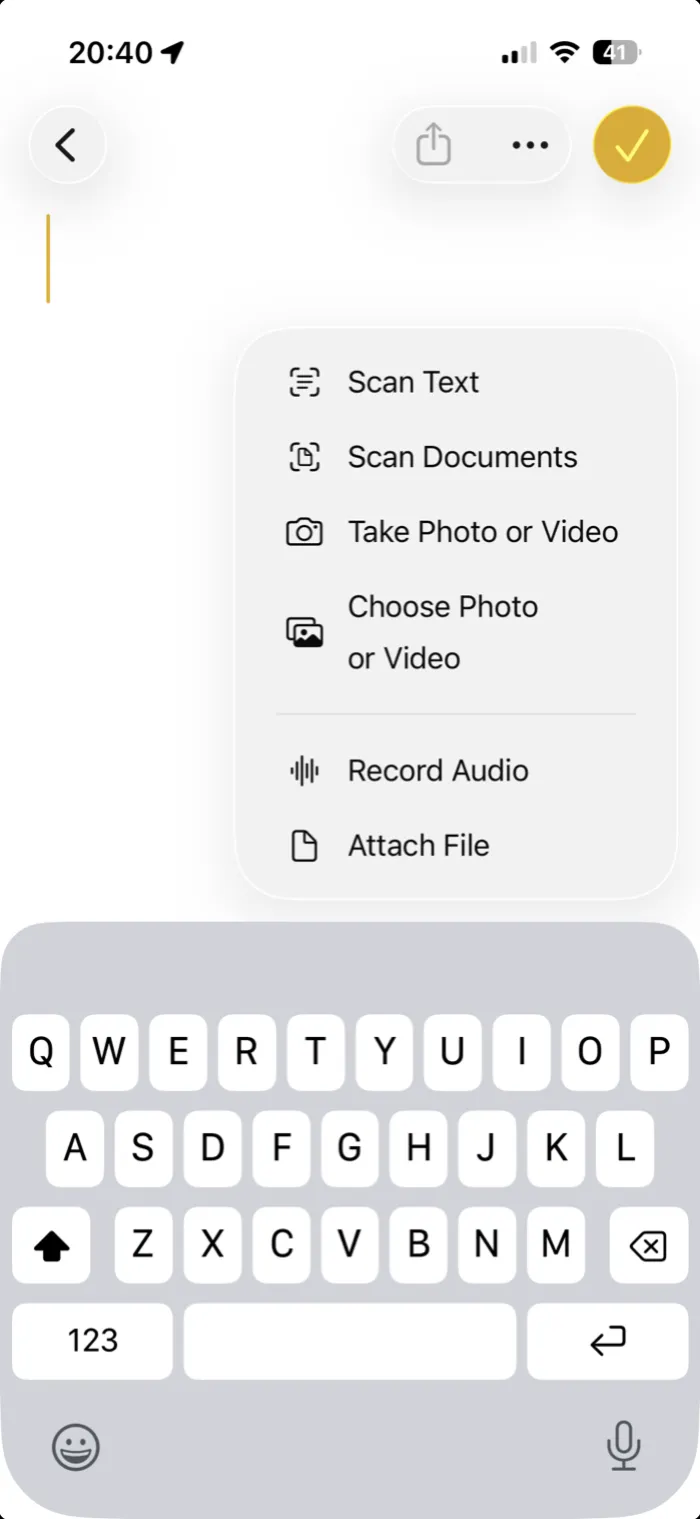 Step 2Tap Scan Documents.
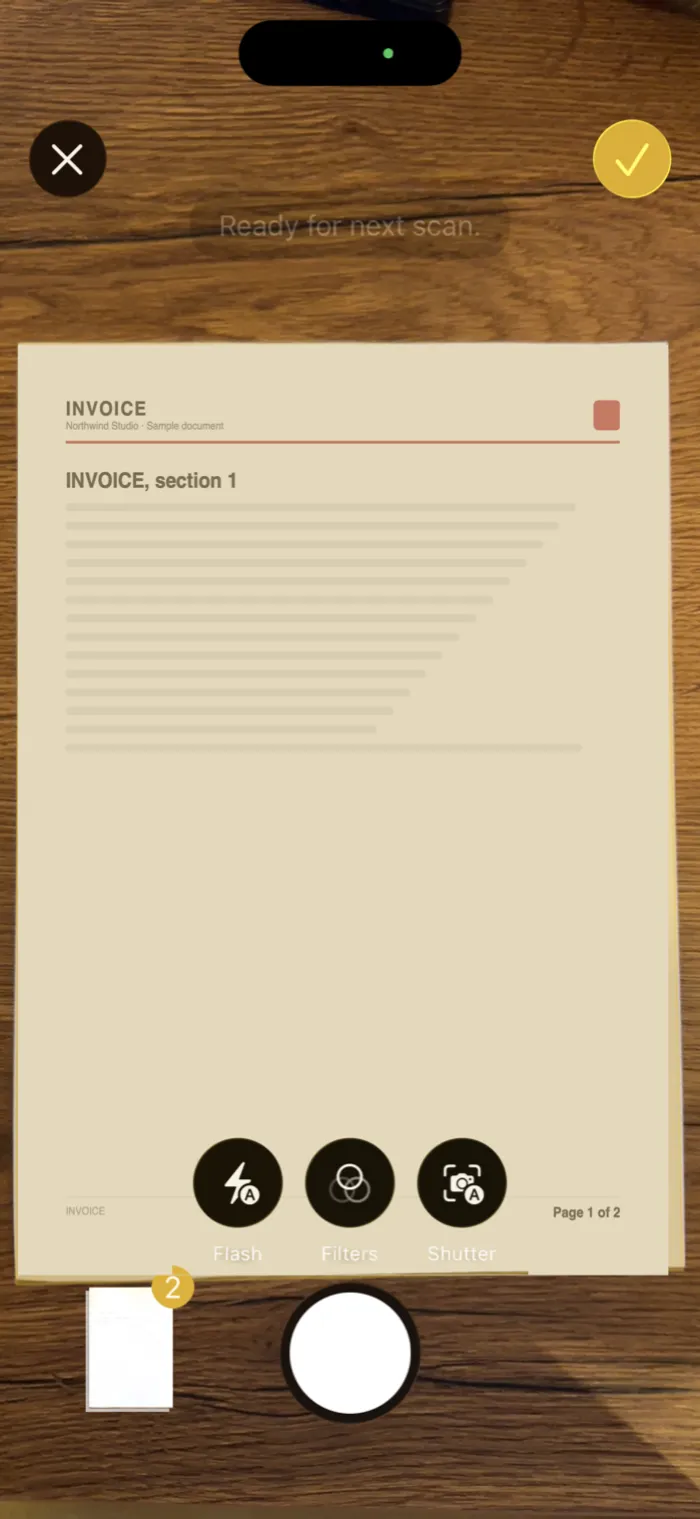 Step 3Hold the iPhone over the page. In Auto it captures by itself; otherwise tap the shutter button.
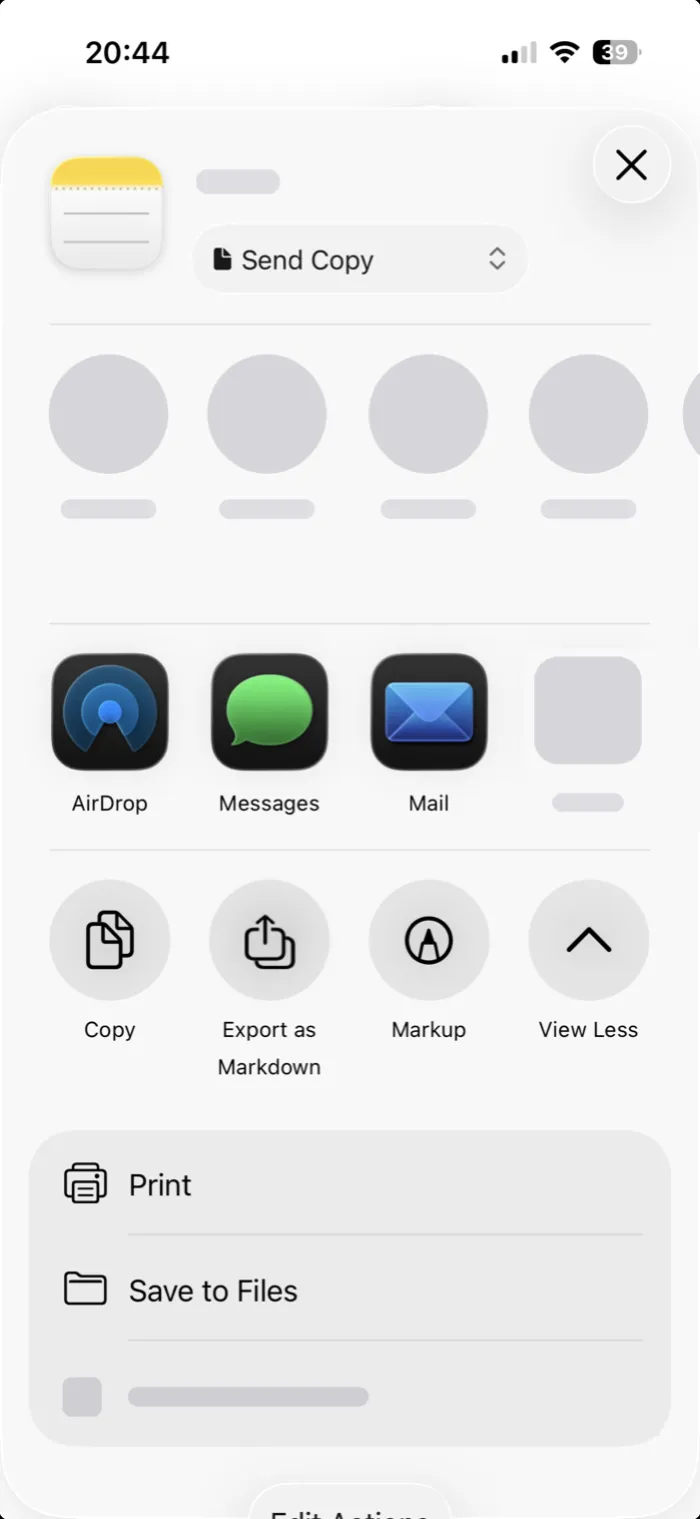 Step 4Tap the checkmark to finish. For a PDF file: tap the scan, Share › Save to Files.
Scan and save a PDF with PDFee
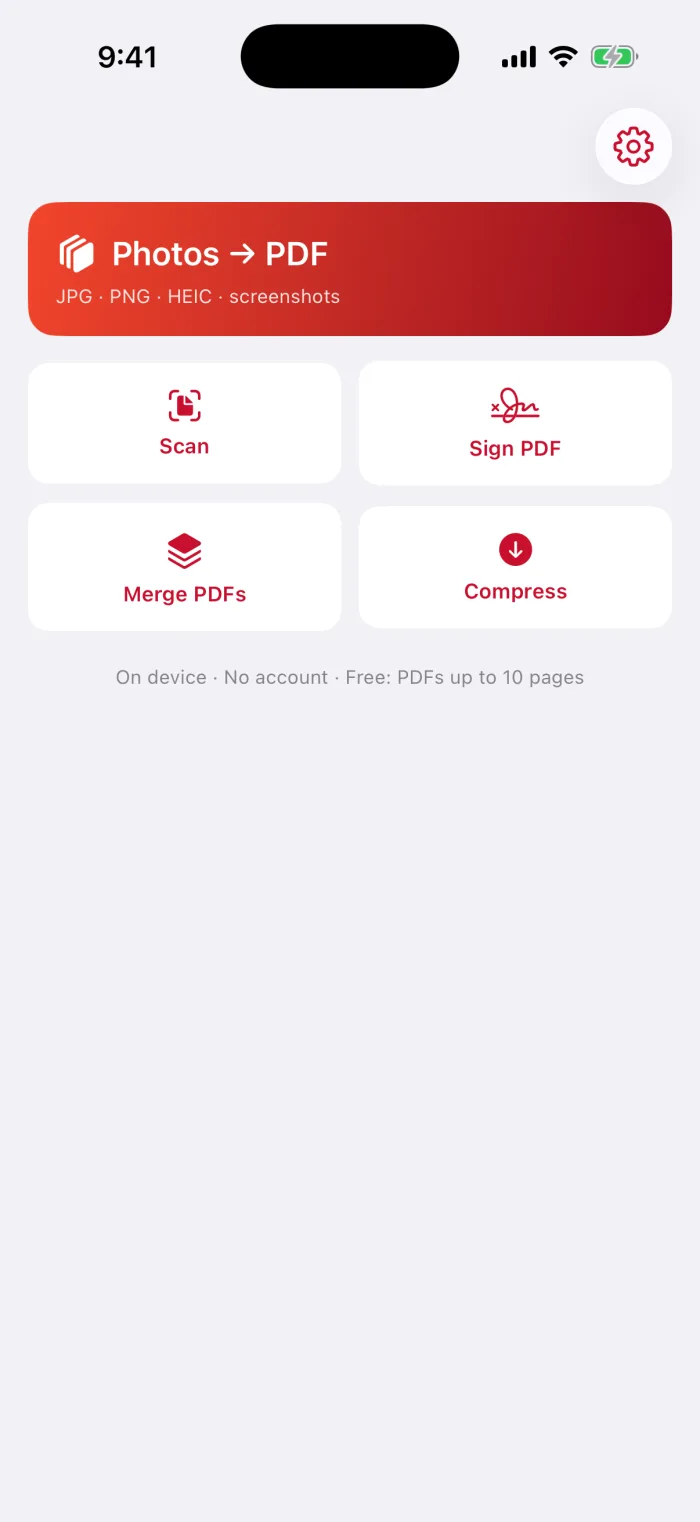
Open PDFee and tap Scan
The Scan tile sits right under the Photos → PDF card on the home screen.
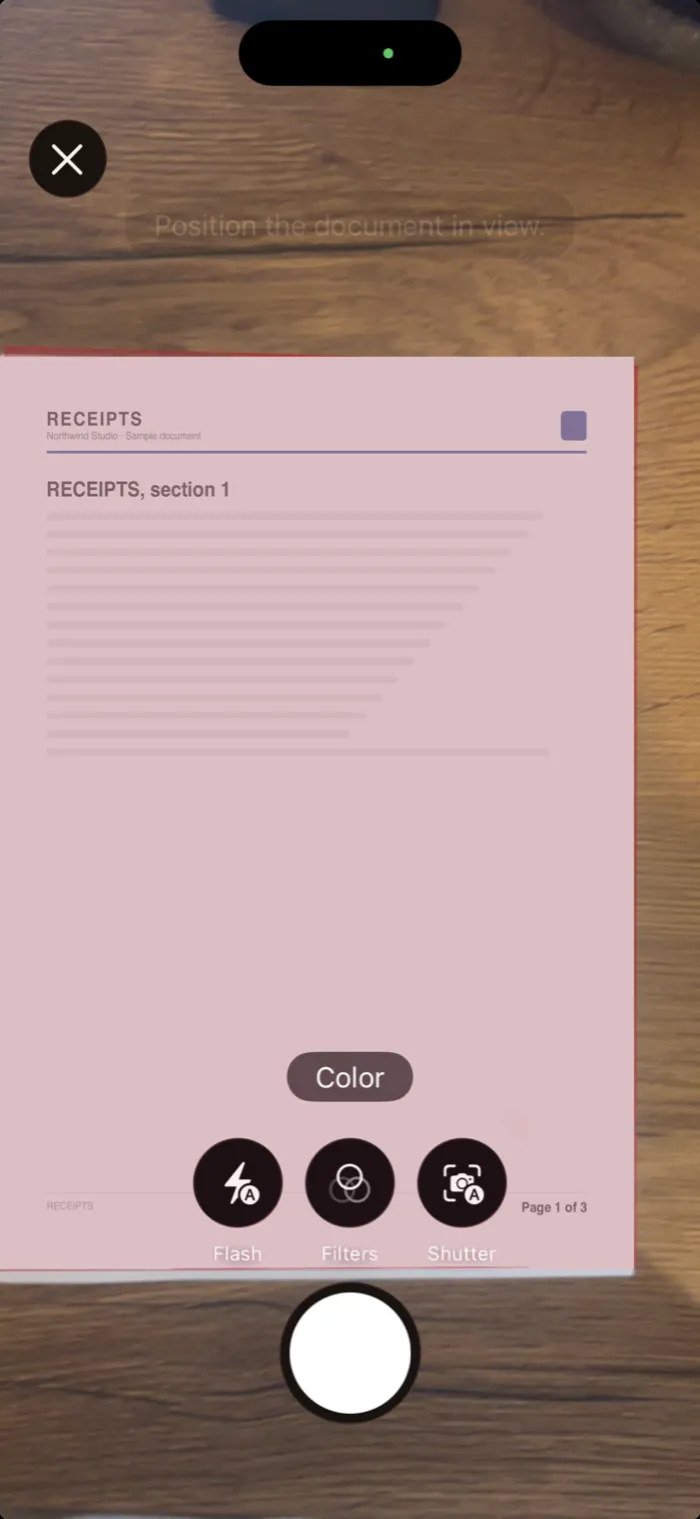
Capture the page
Hold your iPhone over the paper. In Auto mode it finds the edges and captures by itself.
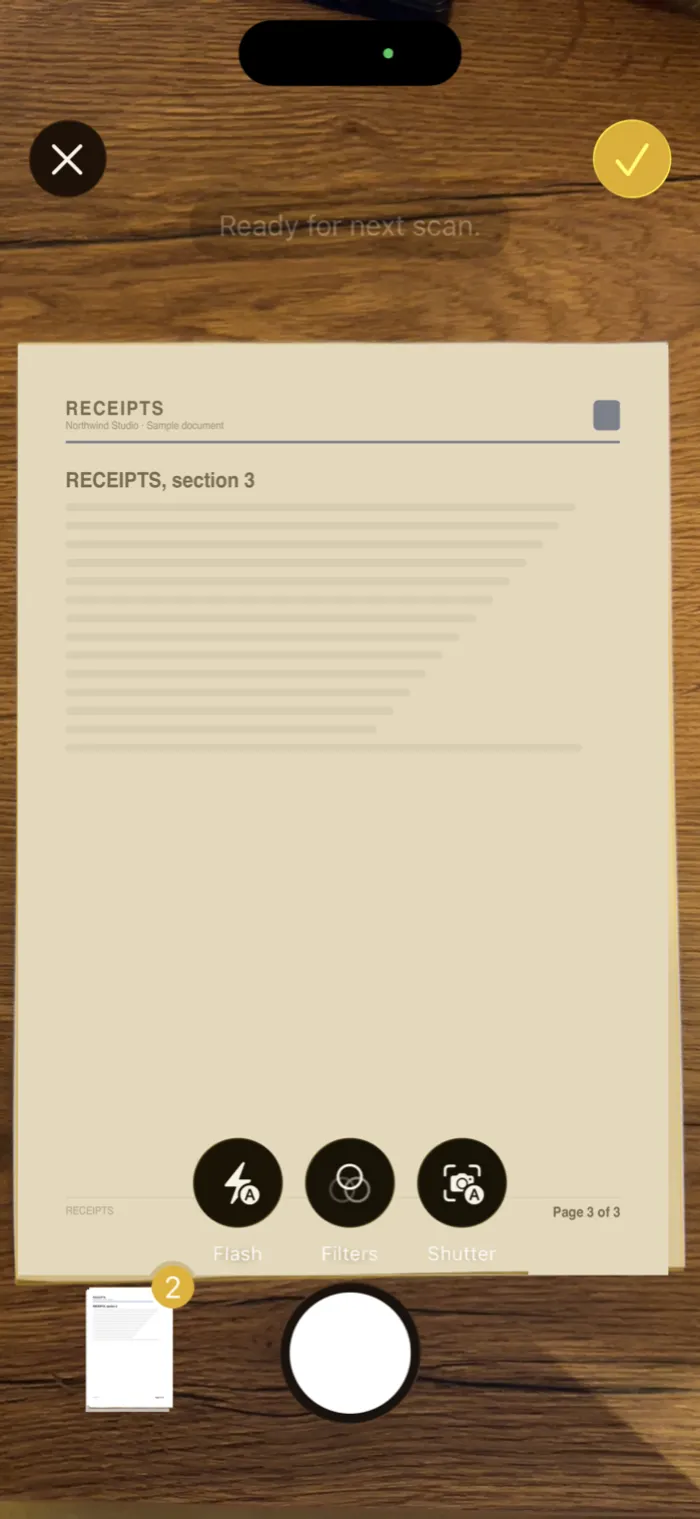
Tap the checkmark
When the pages are in, tap the checkmark at the top right. They open in PDFee, already cropped and straightened.
Check the order and page size
Drag pages to reorder them. Tap the size button for Auto, Letter or A4, then tap Continue.
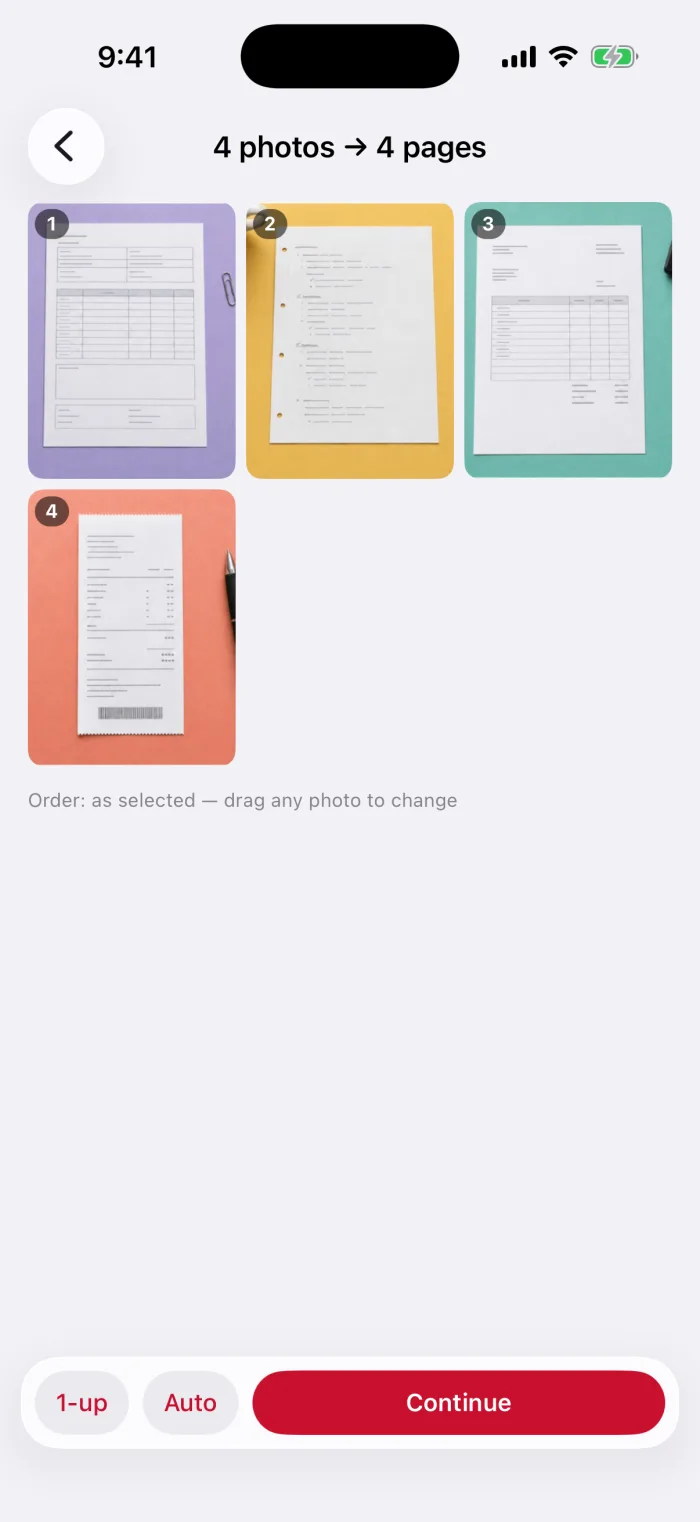
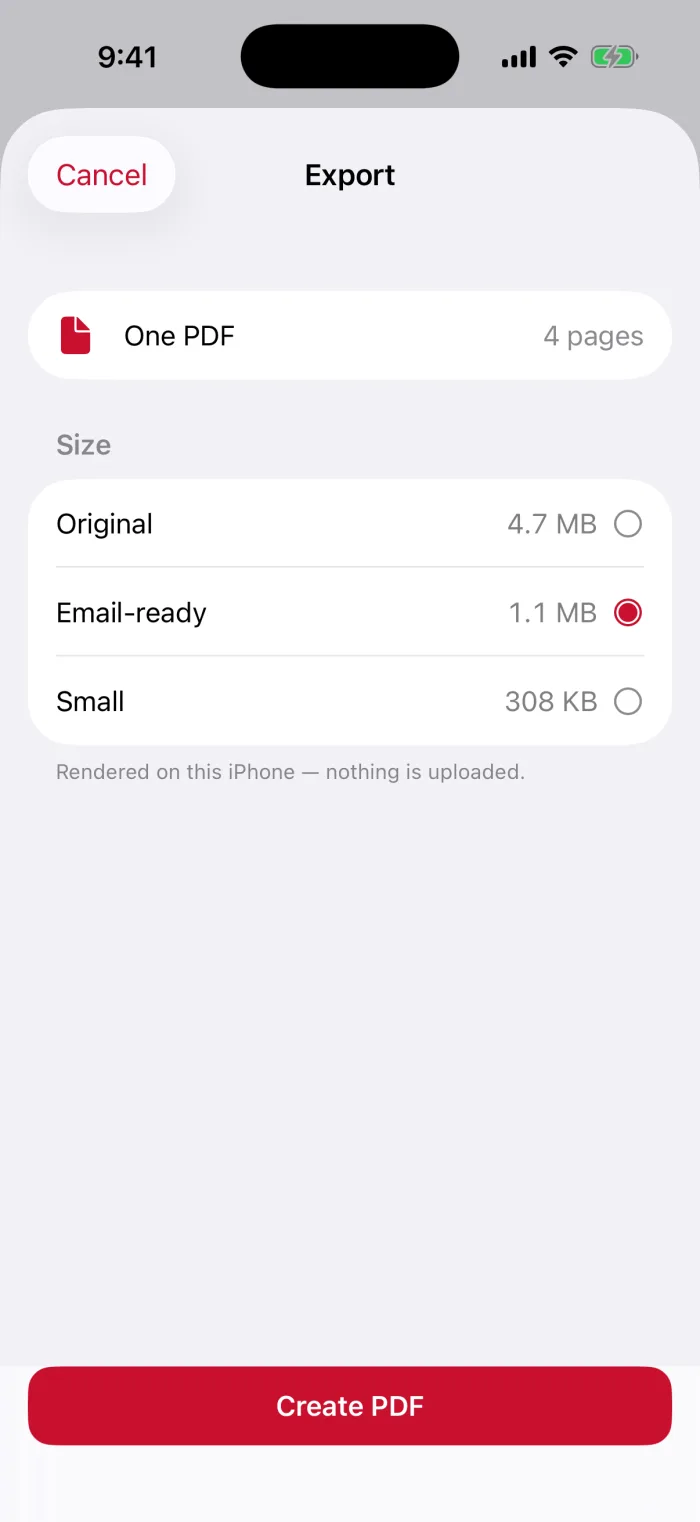
Pick a file size and tap Create PDF
Original for full quality, Email-ready or Small for a lighter file. Estimated sizes are shown first.
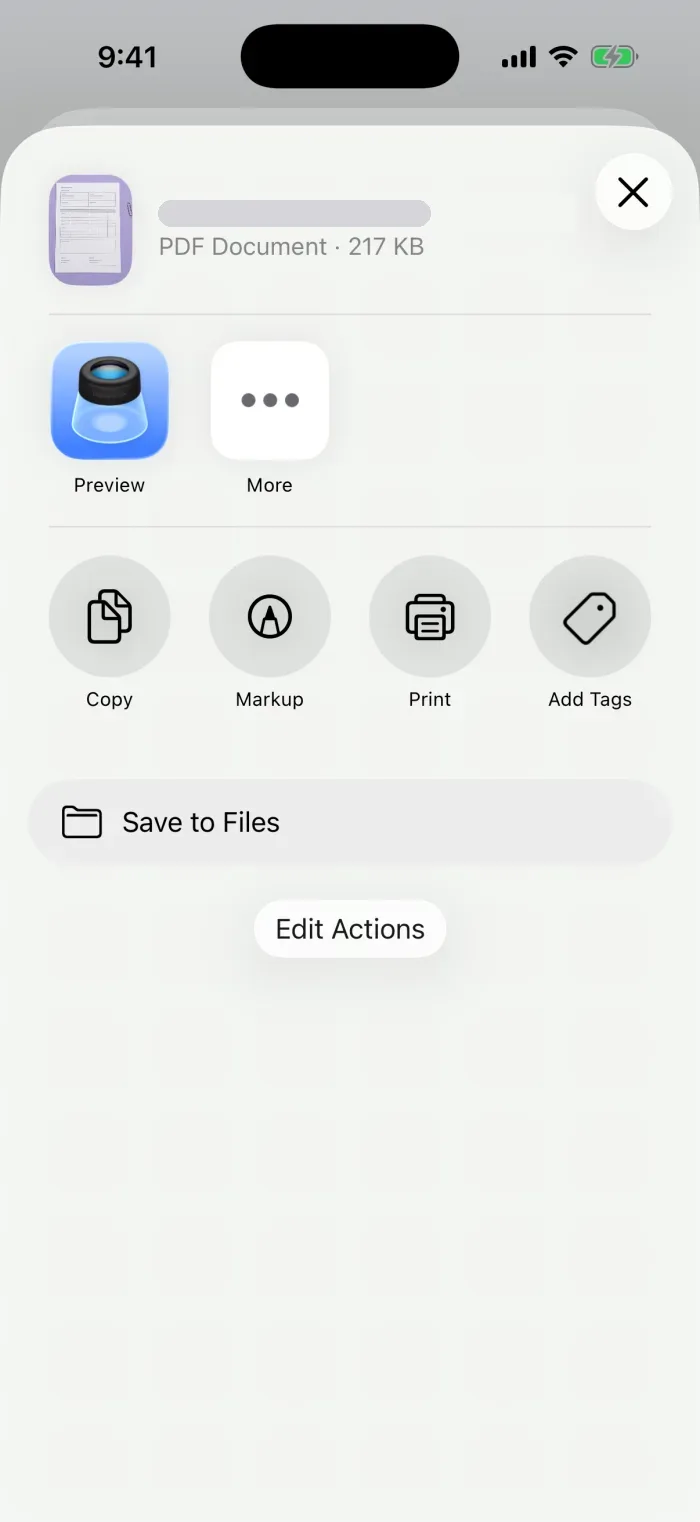
Share or save it
Send it with Mail or Messages, or tap Save to Files.
Crop, retake and check a readable scan
Right after capturing, tap the small thumbnail in the bottom-left corner. This works the same in Notes, Files and PDFee.
For a scan that’s easy to read
- Email itChoose Mail in the share sheet. The PDF is attached automatically.
- Save itSave to Files. On My iPhone keeps it on the device; iCloud Drive syncs it.
- Too large to send?Pick Email-ready or Small in PDFee, or reduce a scanned PDF.
- Needs a signature?Sign the scanned PDF
When you need more than one page
Both scanners keep adding pages until you tap the checkmark, and everything ends up in one PDF. Page order, missing pages and big files are covered in the multi-page guide.
How to Scan Multiple Pages into One PDF on iPhoneHow to Scan and Save Receipts as PDF on iPhoneQuestions
Can I scan a document with my iPhone and make it a PDF?
Yes. The scanner in Notes and Files is built in. Files saves the scan as a PDF straight away. From Notes, share the scan and save it to Files.
Where is the scan tool on iPhone?
Inside the Notes app (Attachment button › Scan Documents) and the Files app (••• › Scan Documents). There is no separate scanner app.
How do I scan a document on iPhone and send it in an email?
Scan it with any method above, tap Share, and choose Mail. The PDF is attached to a new email.
Is the PDFee scanner better than the one in Notes?
The scanning itself is the same: PDFee uses Apple’s document camera. PDFee helps with what comes after: page size, file size and a ready PDF in one flow.
What to do next