How to Combine Multiple Photos into One PDF on iPhone
Several photos, one PDF, one photo per page, in the right order. Here’s how to do that with the built-in tools, and when PDFee makes the order easier to control.
 PDFee teamUpdated September 27, 2026 · 5 min readTestediPhone 14 Pro · iOS 26.6.2 · PDFee 1.6
On this page
Quick answer
Save the photos to one folder in Files, tap ••• › Select, select them all, then tap ••• › Quick Actions › Create PDF. You get one PDF with a page per photo.
- 1Photos → PDF
- 2Pick and drag into order
- 3Create PDF
One PDF with several pages, or several photos on one page?
These are two different results. This guide is about the first one.
Want them on one sheet? See how to put multiple photos on one PDF page. Already have separate PDFs? See how to combine PDF files.
Which method should you use?
Combine photos with a native method
Option A: The Files app
Order follows file names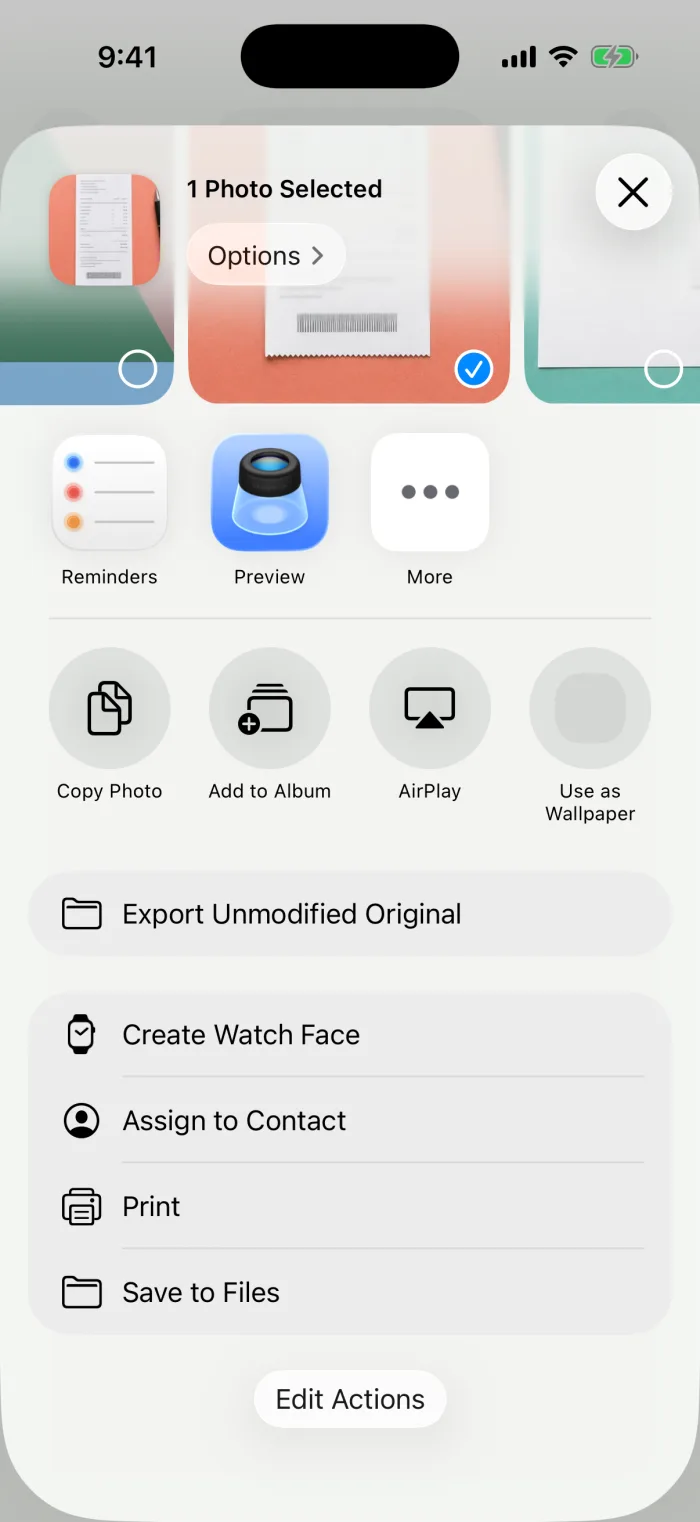 Step 1In Photos, select the photos, tap Share › Save to Files and pick one folder.
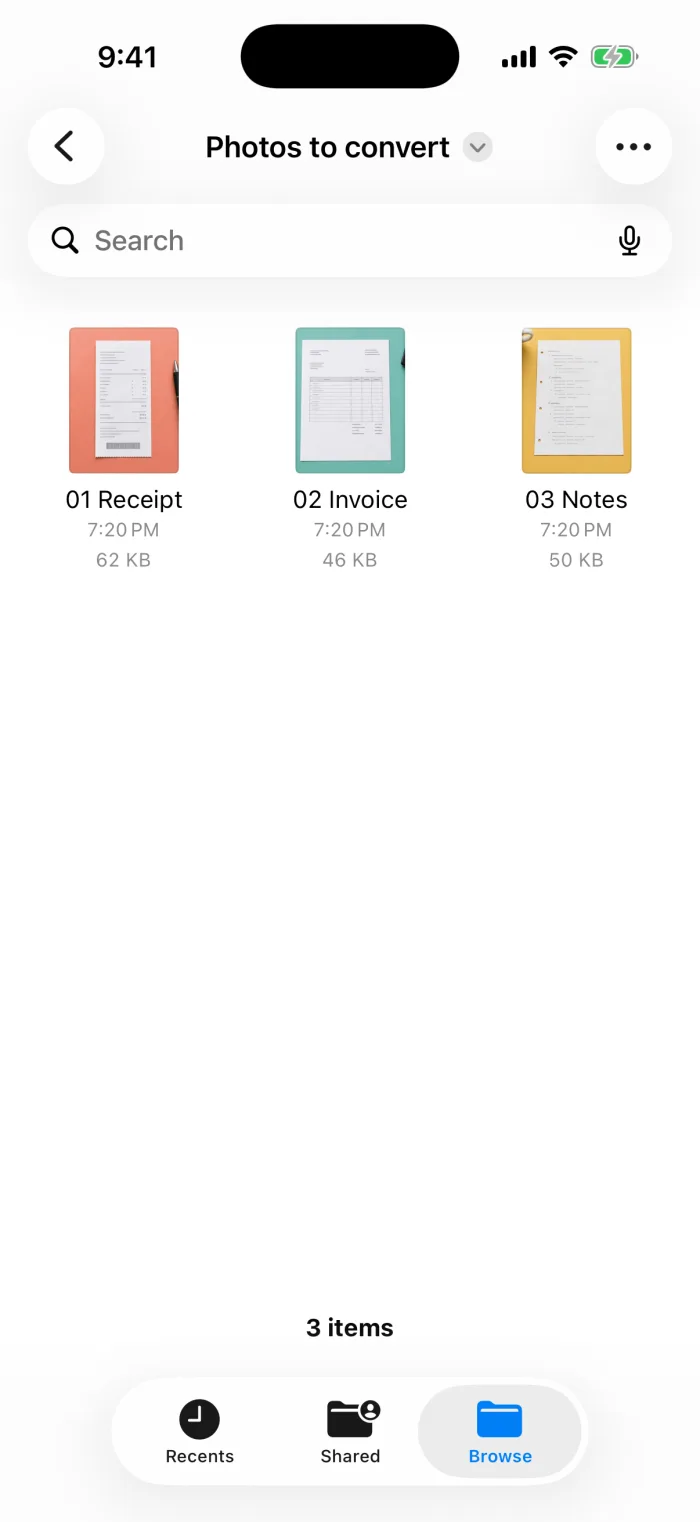 Step 2Open that folder in Files, tap ••• at the top, then Select.
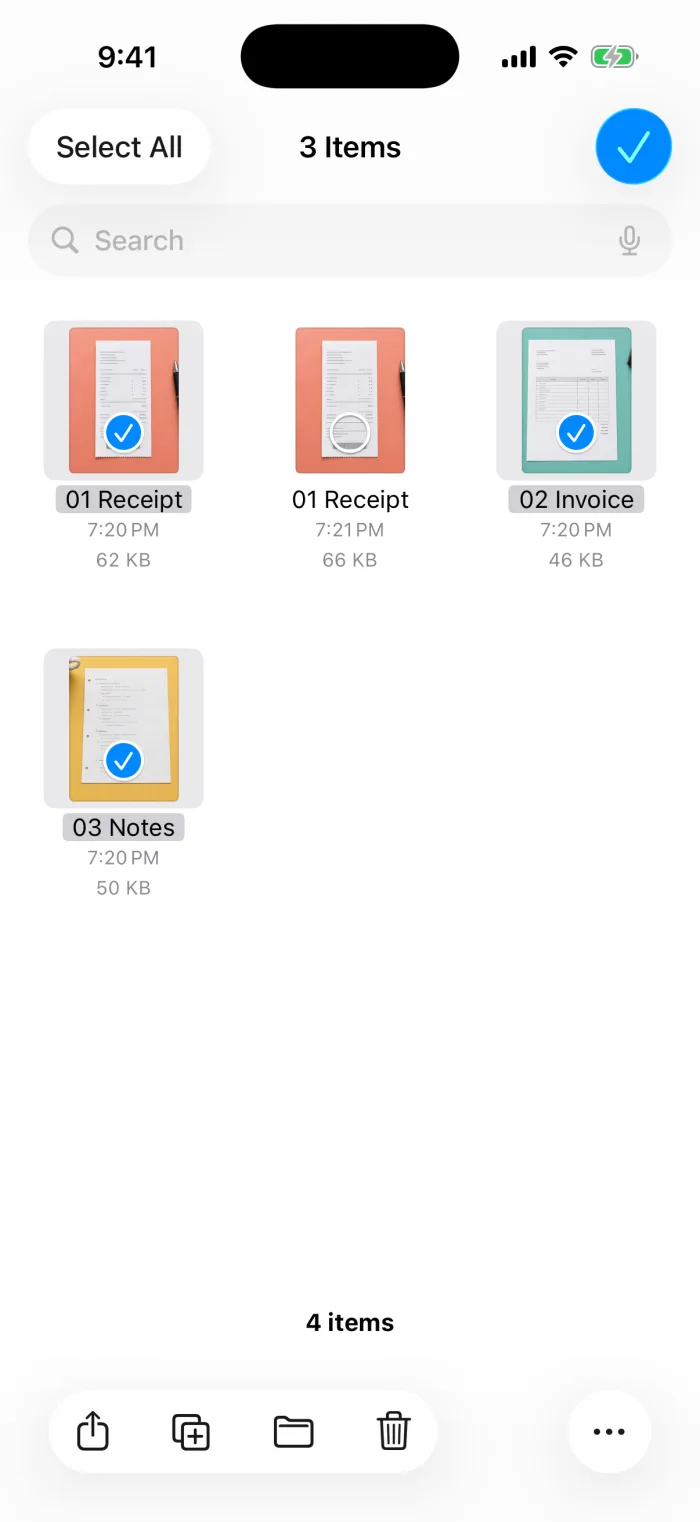 Step 3Select all the photos.
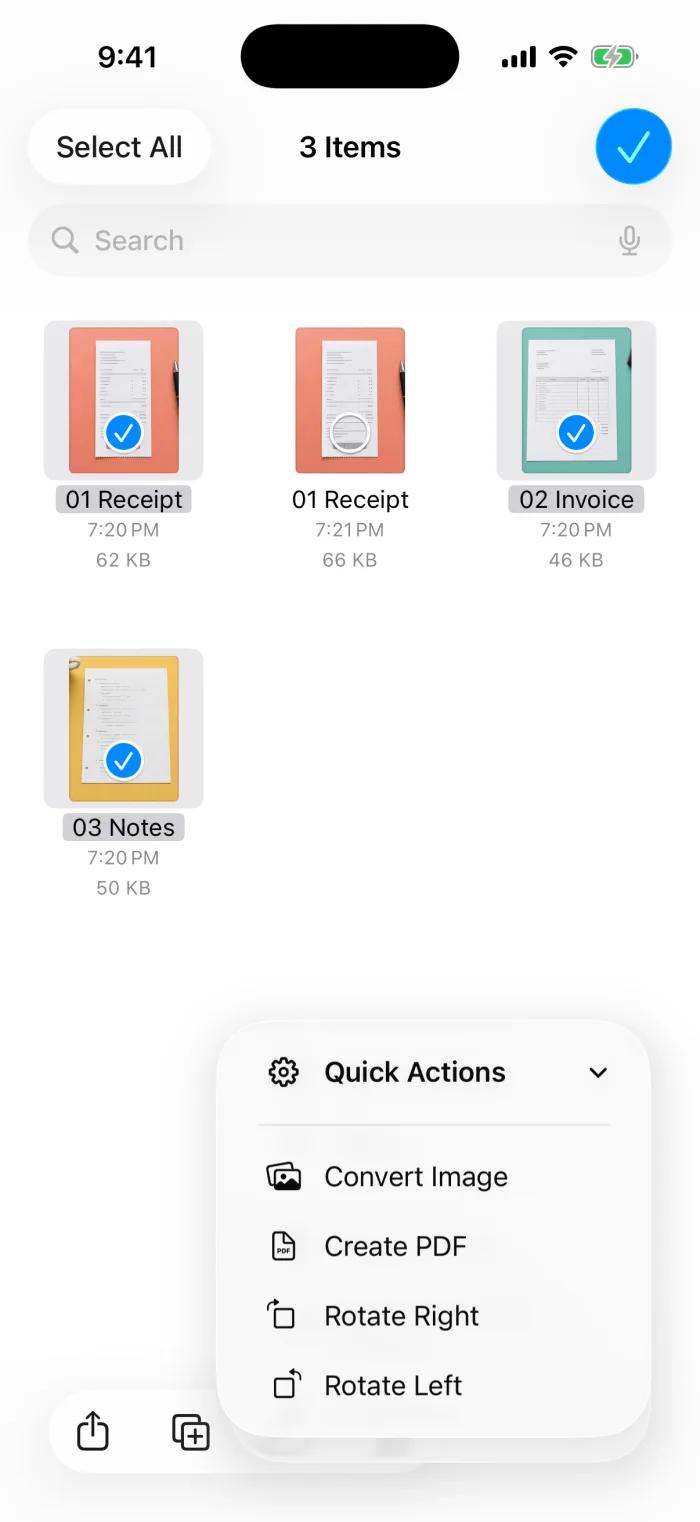 Step 4Tap ••• at the bottom, then Quick Actions › Create PDF.
Option B: The Print option
From Photos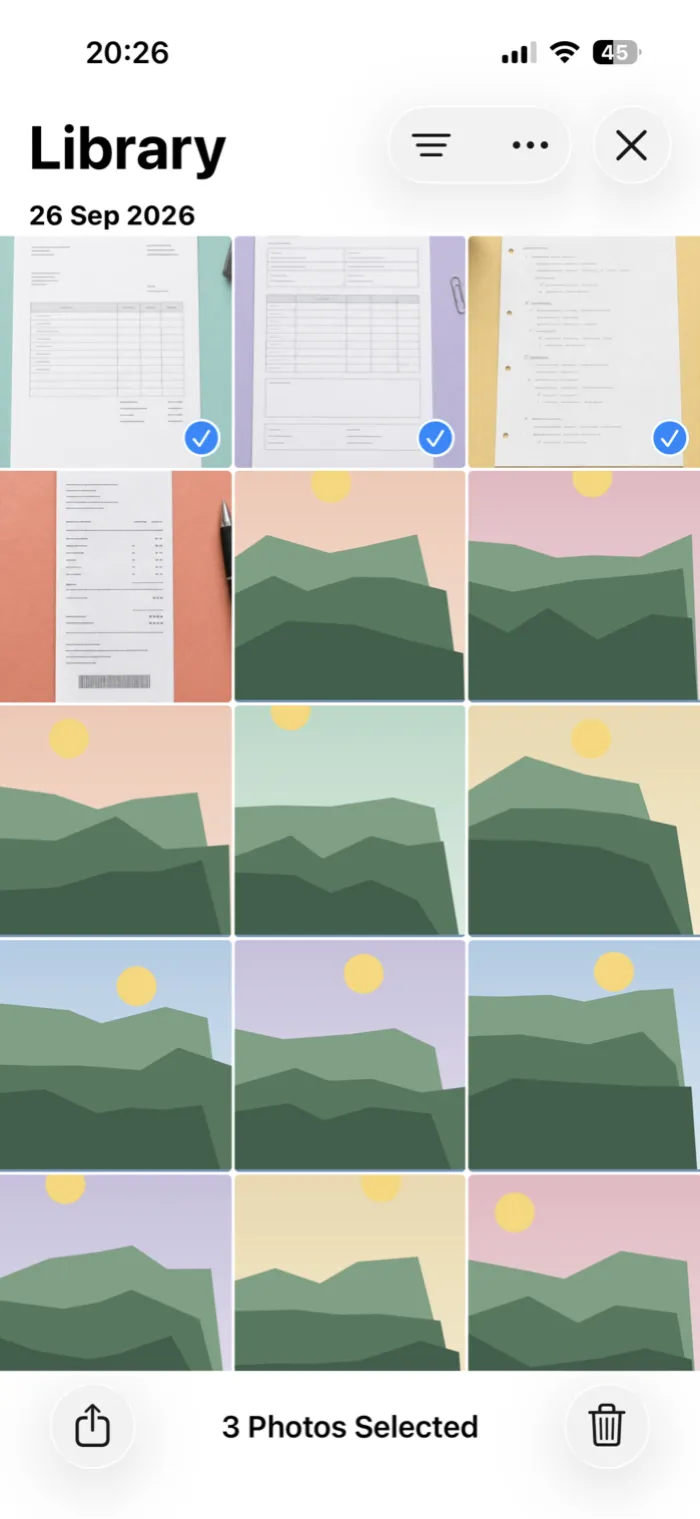 Step 1In Photos, tap Select and select the photos.
- Step 2Tap Share, scroll down and tap Print.
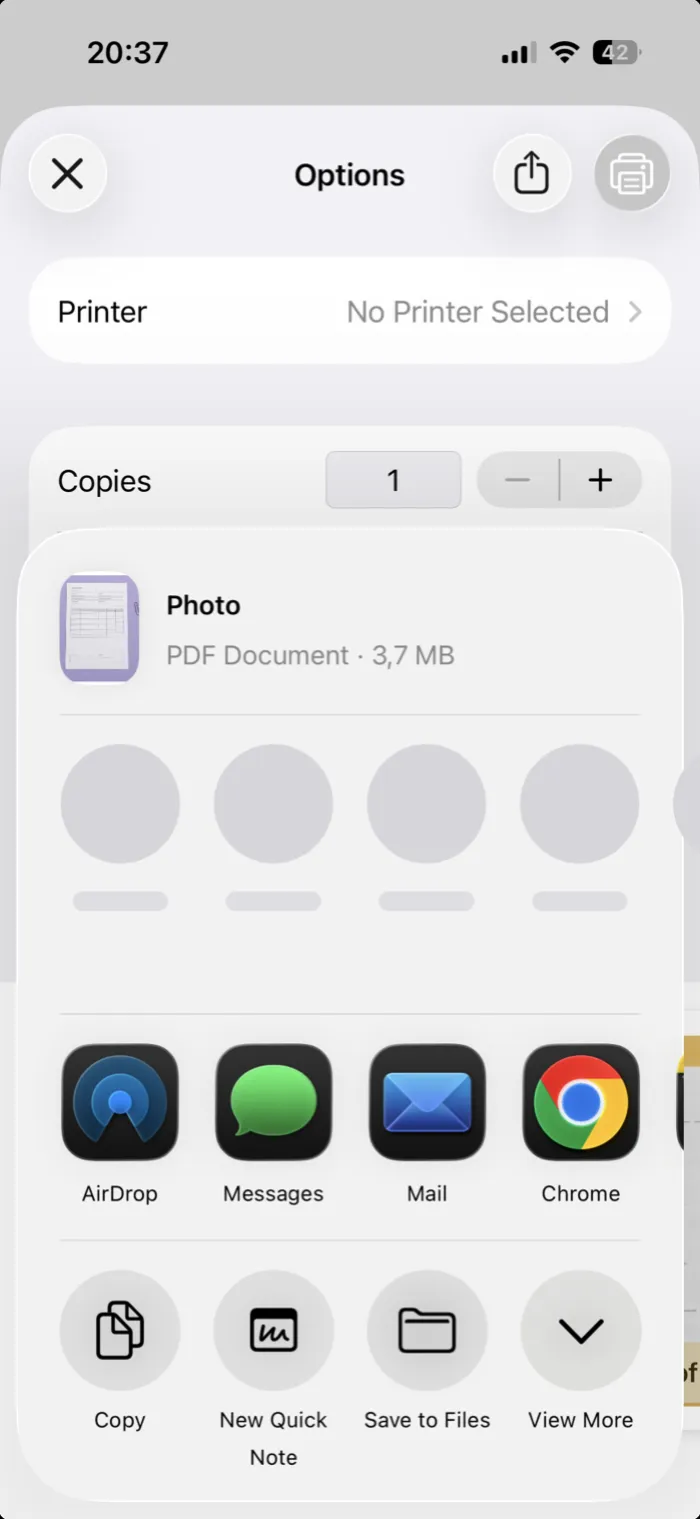 Step 3Tap the Share button at the top of Print Options, then Save to Files.
Order photos and create a PDF with PDFee
PDFee shows all photos as numbered pages before it makes the PDF, so you can fix the order by dragging. Everything happens on your iPhone.
Open PDFee and tap Photos → PDF
It’s the large red card at the top of the home screen.

Select the photos in order
Tap them in the order you want. JPG, PNG, HEIC and screenshots can be mixed.
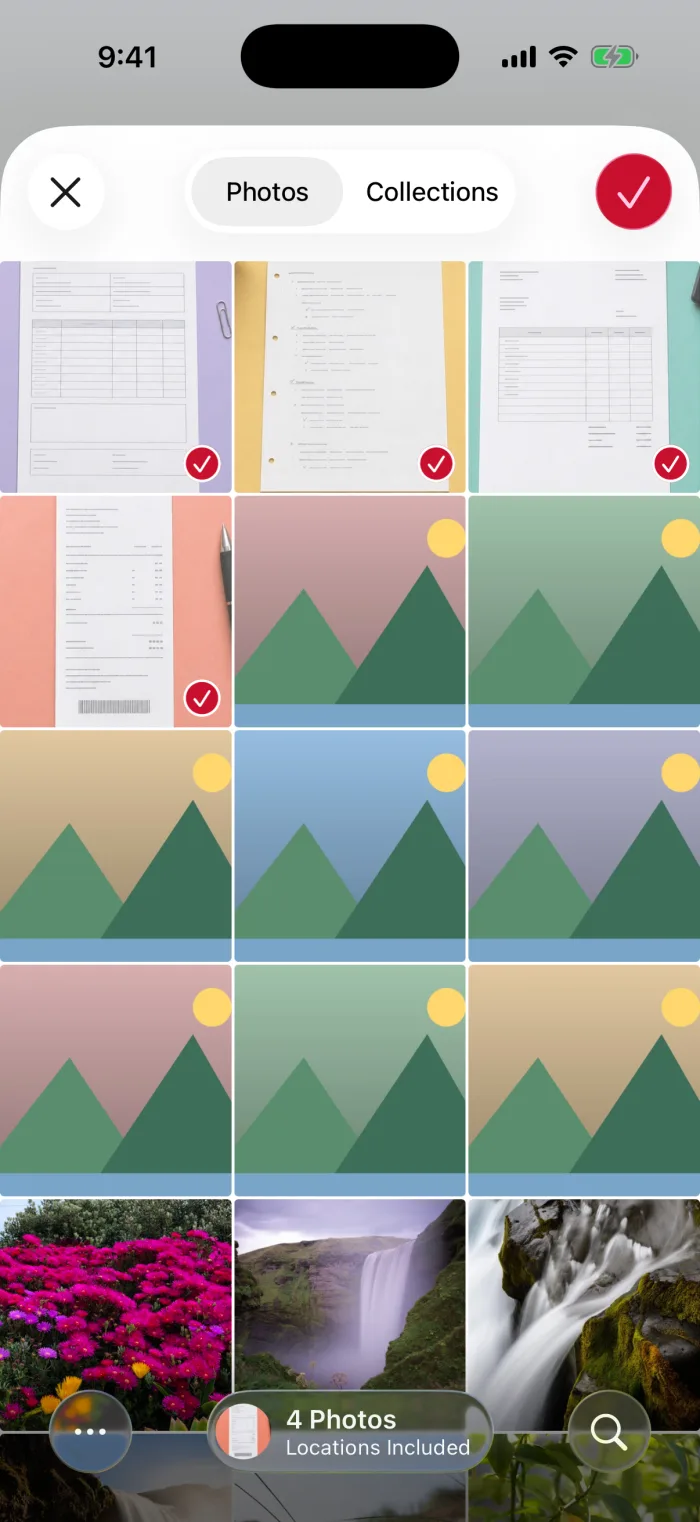
Check the numbers and drag to fix
Every photo shows its page number. Touch and hold one and drag it to a new place. The title shows how many pages you’ll get.
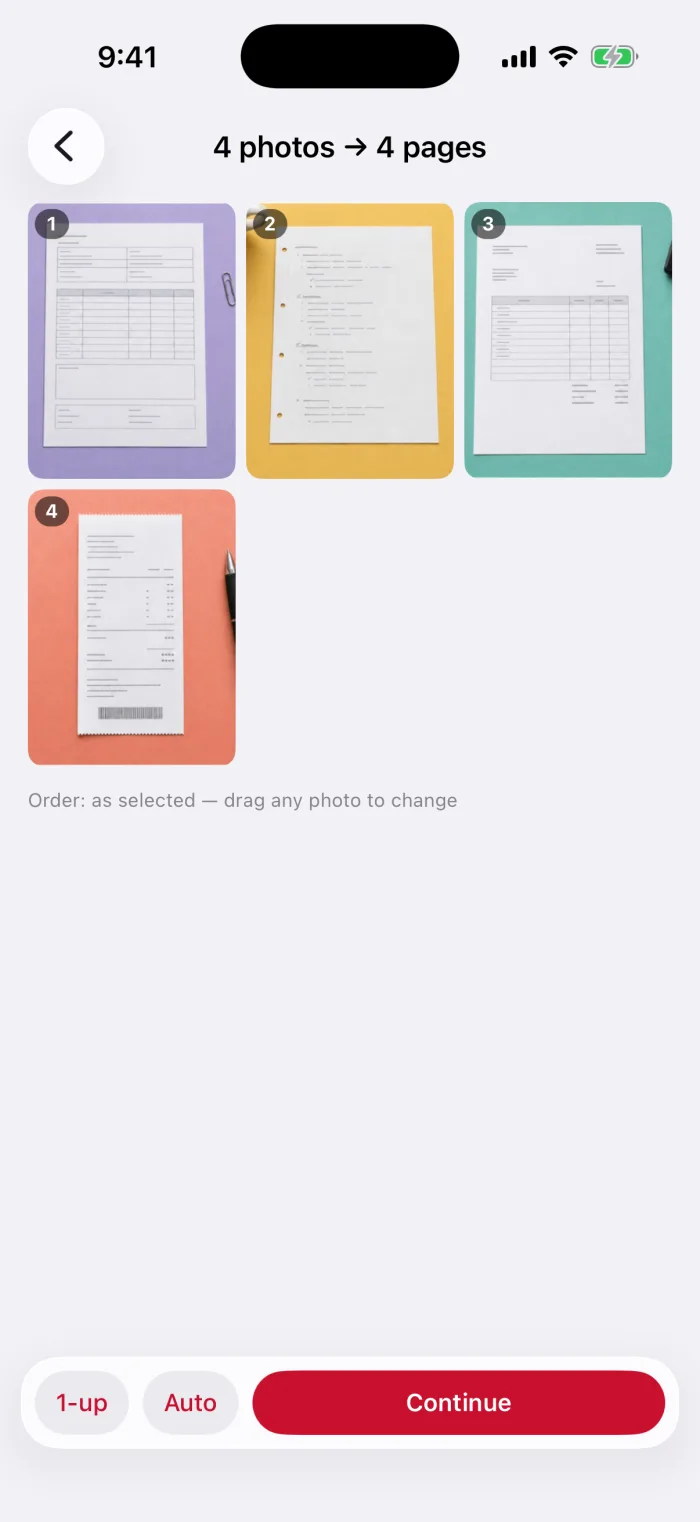
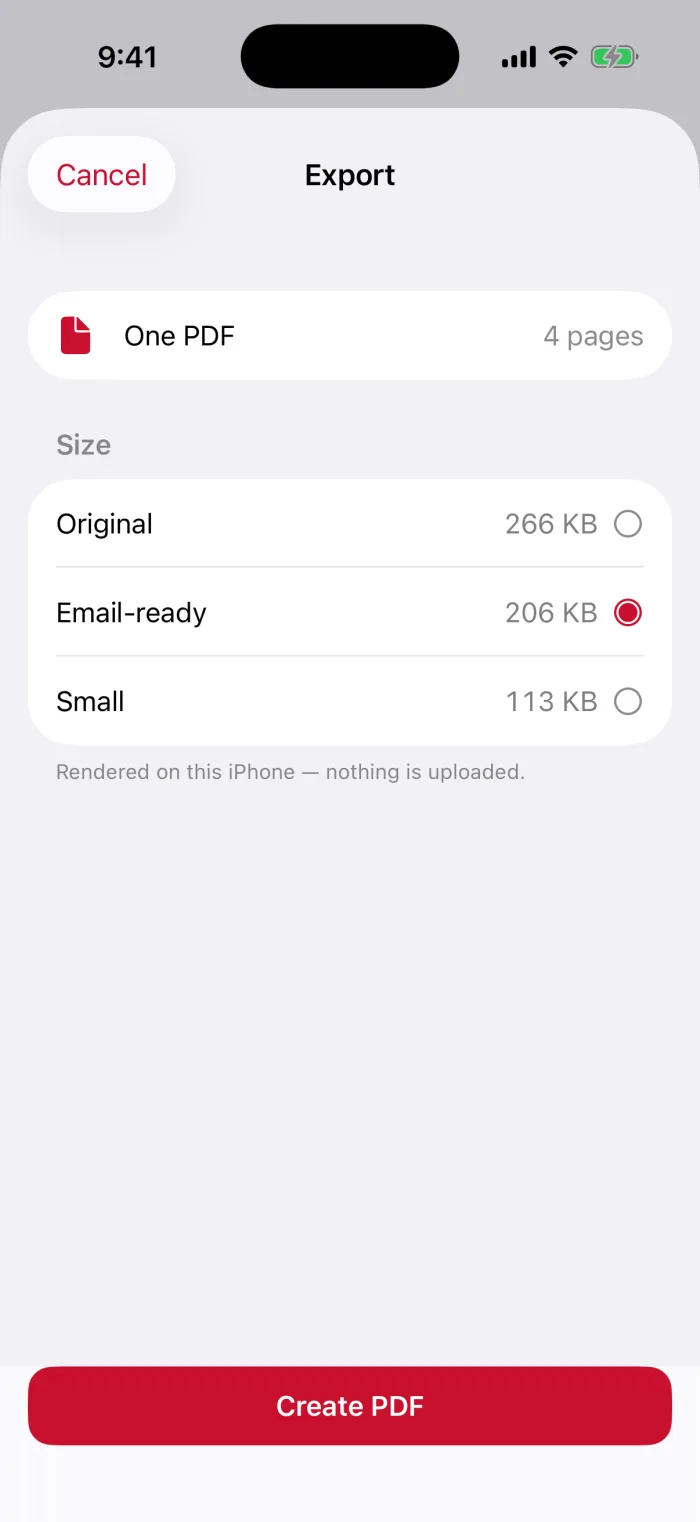
Tap Continue, then Create PDF
Pick Auto, Letter or A4 first if you need a page size. Then choose a file size and tap Create PDF.
Share or save it
The share sheet opens with your multi-page PDF.
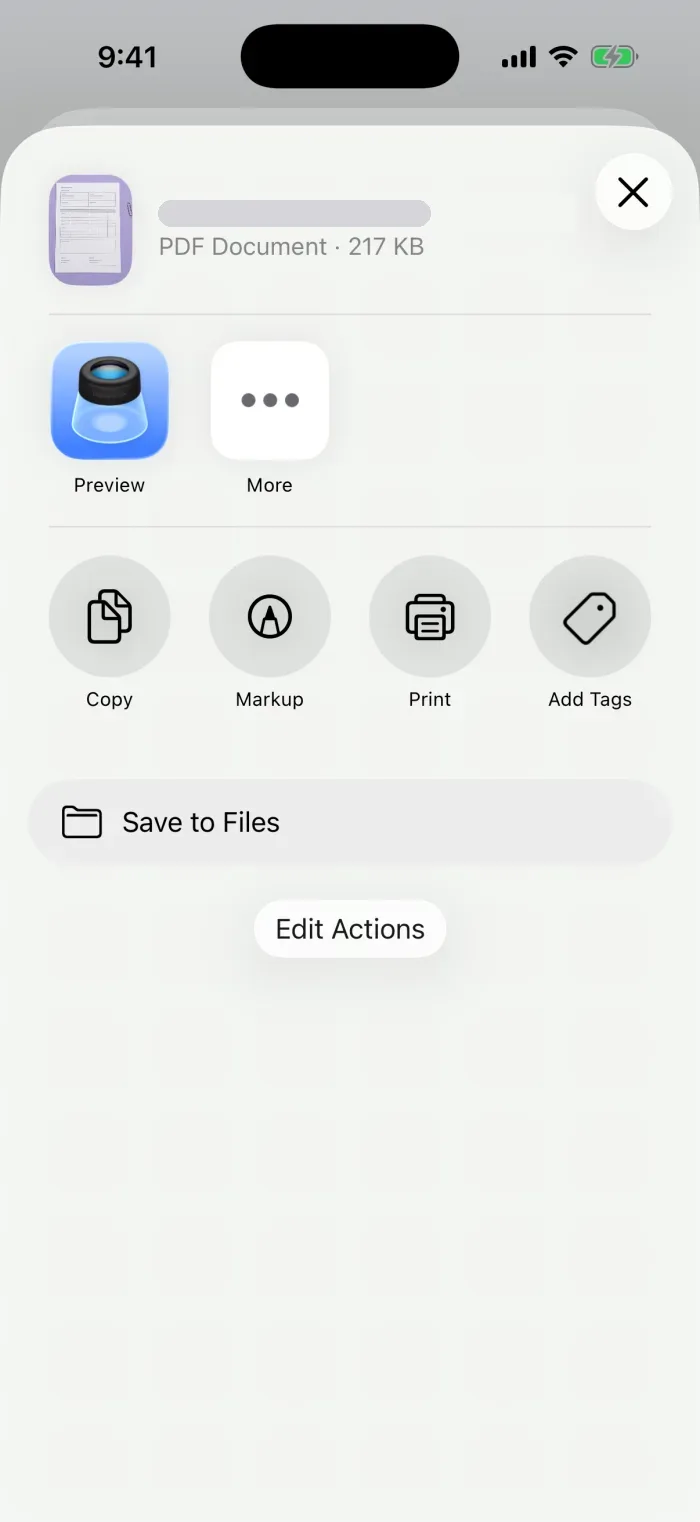
Check the order, orientation and page count
- Save itSave to Files from the share sheet.
- Too big to email?Many photos add up. Choose Email-ready in PDFee, or compress the PDF afterwards.
- Need to add another PDF?Combine it with other PDF files
Questions
How can I combine multiple photos into a single PDF document?
Select the photos and make one PDF from them: in the Files app with Create PDF, or in PDFee with Photos → PDF. Each photo becomes one page.
How do I make pictures into a PDF on iPhone?
For a single picture, see the photo to PDF guide. For several at once, use one of the methods above.
Can I put several photos on one page instead?
Yes, that’s a different layout: two, four or nine photos per sheet. See the guide on putting multiple photos on one PDF page.
Can I merge PDF files on my iPhone?
Yes. If you already have separate PDFs rather than photos, see the guide on combining PDF files.
What to do next